Introduction
Excel is a fundamental tool for data analysts, offering a versatile platform for data manipulation and analysis. Mastering Excel formulas is crucial for anyone looking to excel in this field. In this blog post, we introduce a comprehensive PDF document designed to help you learn the essential Excel formulas to become a proficient data analyst.
Overview of the Document
The “Excel Formulas to Become a Data Analyst” PDF is a meticulously compiled guide that covers all the necessary formulas and functions. This document is structured to provide both beginners and experienced users with a step-by-step approach to mastering Excel formulas. From basic arithmetic operations to complex data analysis techniques, this PDF has it all.
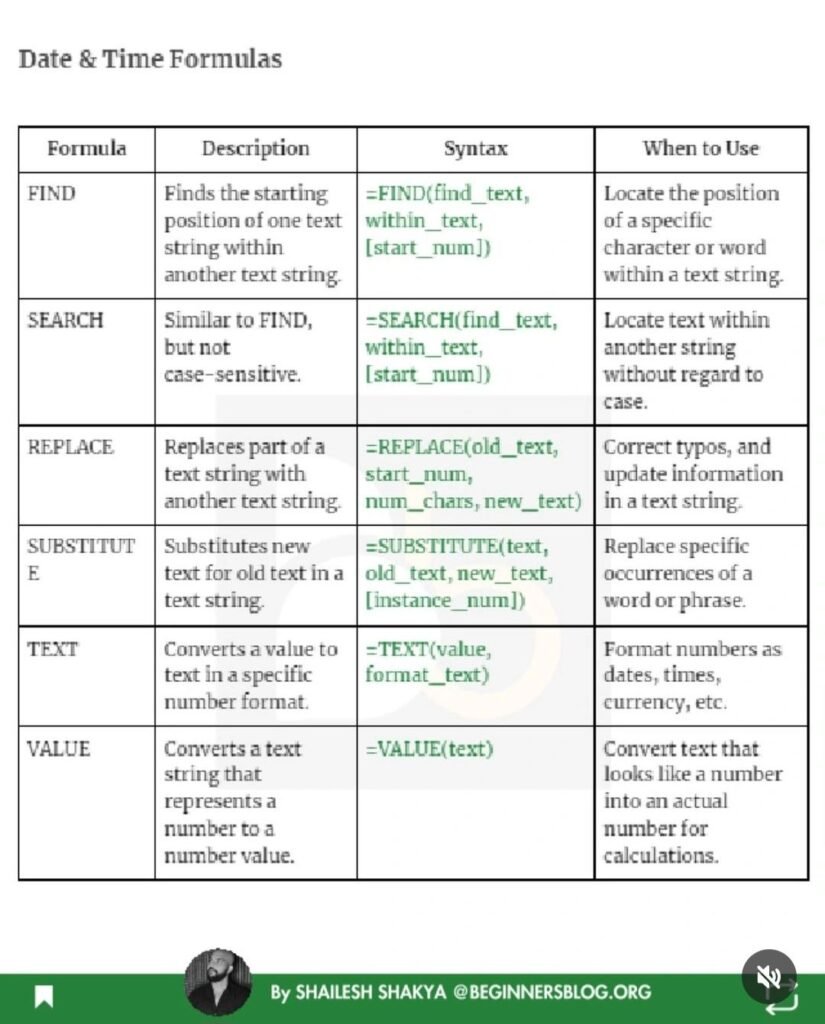

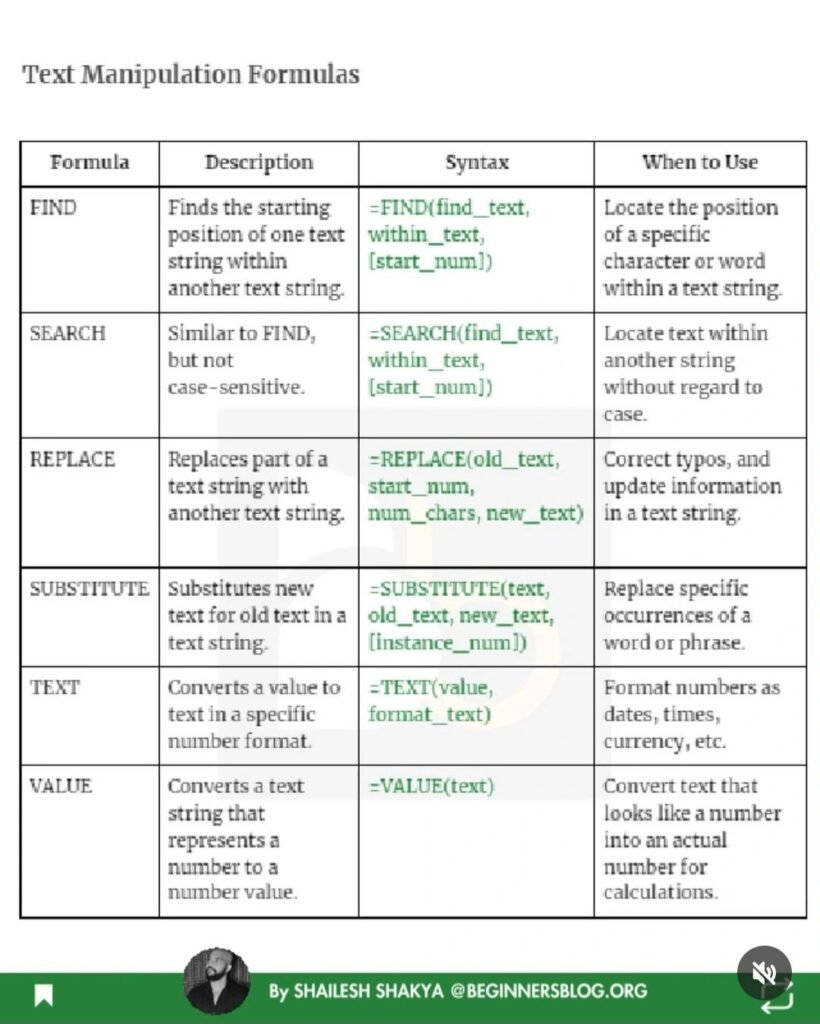


The Content
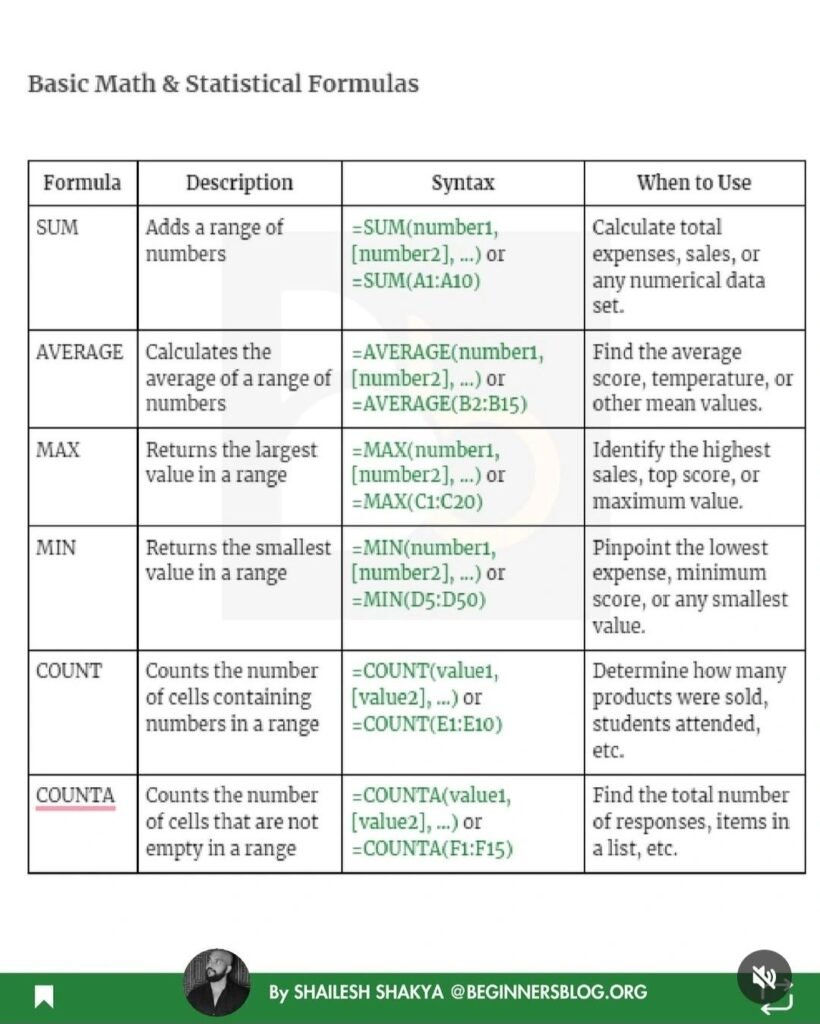
The PDF document includes detailed explanations of various Excel formulas, including:
- SUM: Learn how to sum ranges of data efficiently.
- AVERAGE: Calculate the mean value of your datasets.
- VLOOKUP: Understand how to search for data in a table.
- IF Statements: Make logical comparisons between values.
- PIVOT TABLES: Master the art of data summarization and analysis.
Each formula is accompanied by practical examples to illustrate its application in real-world data analysis scenarios.
Why the Document
This PDF is an invaluable resource for anyone aspiring to become a data analyst. It’s designed to be user-friendly, with clear instructions and examples that make learning Excel formulas straightforward and enjoyable. Whether you’re preparing for a data analyst interview or looking to enhance your current skills, this document will serve as your go-to reference guide.
Data Analyst Interview Tasks You Can Solve with These Formulas
Excel tests in data analyst interviews usually ask you to solve a handful of classic problems. Here they are, with a formula-based solution for each. All examples assume your data is in a Table called Orders with columns Date, Customer, Region, Product and Amount.
Task 1: Total and average by group
“What is the total and average order value per region?”
=SUMIFS(Orders[Amount],Orders[Region],G2) and =AVERAGEIFS(Orders[Amount],Orders[Region],G2), with each region listed once in column G (use =UNIQUE(Orders[Region]) to create that list).
Task 2: Remove duplicates without losing data
“How many unique customers ordered this year?”
=COUNTA(UNIQUE(FILTER(Orders[Customer],YEAR(Orders[Date])=2026))). In older versions, copy the column and use Data › Remove Duplicates on the copy.
Task 3: Top N results
“Show the five largest orders.”
=TAKE(SORT(Orders,5,-1),5) in Microsoft 365, or =LARGE(Orders[Amount],1) to =LARGE(Orders[Amount],5) combined with XLOOKUP to return the matching customer.
Task 4: Running total
“Add a cumulative sales column.”
In the first data row: =SUM($E$2:E2), then fill down. The anchored start ($E$2) and moving end (E2) make the range grow row by row.
Task 5: Categorise values
“Label each order as Small (<100), Medium (100–499) or Large (500+).”
=IFS([@Amount]<100,"Small",[@Amount]<500,"Medium",TRUE,"Large")
Task 6: Match data from two tables
“Bring the customer’s segment from the Customers table into Orders.”
=XLOOKUP([@Customer],Customers[Name],Customers[Segment],"Unknown"). Interviewers often ask why XLOOKUP or INDEX/MATCH is safer than VLOOKUP: it does not break when columns are inserted and can look left.
Task 7: Clean messy text
“Customer names have extra spaces and mixed case.”
=PROPER(TRIM([@Customer])). To split “Smith, John” into two columns use =TEXTSPLIT(A2,", ") (Microsoft 365) or Data › Text to Columns.
Task 8: Summarise by month
“Show sales by month.”
Add a helper column =EOMONTH([@Date],0) or =TEXT([@Date],"yyyy-mm"), then build a PivotTable with that column in Rows and Amount in Values. Or group the Date field directly in the PivotTable.
How to prepare
- Practise each task on a sample dataset until you can do it without notes.
- Explain your reasoning out loud: interviewers care about how you check your answer as much as the formula.
- Always sanity-check totals: the sum of a PivotTable should equal
=SUM(Orders[Amount]).
Frequently Asked Questions
What Excel level is required for a data analyst job?
Intermediate to advanced: lookups, SUMIFS/COUNTIFS, IF/IFS, text and date functions, PivotTables, charts and basic Power Query. Dynamic arrays (FILTER, UNIQUE, SORT) are increasingly expected.
Are Excel tests timed in interviews?
Often, yes, typically 20 to 60 minutes. Speed comes from knowing the formulas above and the main keyboard shortcuts.
Related guides
- 20 Essential Excel Formulas for Data Analysts
- 5 Excel Features Every Data Analyst Should Know
- Excel for Data Analysis PDF
Conclusion
Mastering Excel formulas is a critical step in your journey to becoming a successful data analyst. The “Excel Formulas to Become a Data Analyst” PDF provides all the tools and knowledge you need to excel in this field. Download the PDF today and take the first step towards becoming an Excel expert.
Download PDF
Click the link below to download your copy of the “Excel Formulas to Become a Data Analyst” PDF. Equip yourself with the essential Excel skills and start your journey to becoming a proficient data analyst.