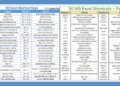
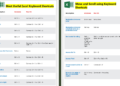
In today’s fast-paced business environment, Microsoft Excel has become an indispensable tool for professionals. Whether you’re managing data, creating financial reports, or analyzing statistics, Excel offers a suite of features that can streamline your workflow. Our comprehensive PDF guide, ‘Microsoft Excel for Professionals,’ is designed to help you master these features and boost your productivity.
Overview of the Document
Our ‘Microsoft Excel for Professionals’ PDF document is meticulously crafted to cater to both beginners and seasoned users. The guide covers a range of topics from basic functions to advanced data analysis techniques. This document aims to be your go-to resource for all things Excel, ensuring that you can leverage the software to its full potential.


The Content
The PDF guide is divided into several chapters, each focusing on different aspects of Excel:
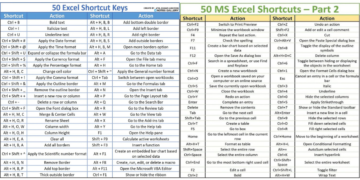
Excel Shortcuts for PC and Mac
- Editing Shortcuts
- Formatting Shortcuts
- Navigation Shortcuts
- File Shortcuts
- Ribbon Shortcuts
- Paste Special Shortcuts
- Clear Shortcuts
- Selection Shortcuts
- Data Editing Shortcuts
- Data editing (inside cell) Shortcuts
- Other Shortcuts
- Reasons to use Excel Shortcuts
- Free Excel Course
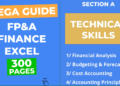
Basic Excel Formulas
- Basic Terms in Excel
- Five Time-saving Ways to Insert Data in Excel
- Seven Basic Excel Formulas For Your Workflow
Advanced Excel Formulas
- INDEX MATCH
- IF combined with AND / OR
- OFFSET combined with SUM or AVERAGE
- CHOOSE
- XNPV and XIRR
- SUMIF and COUNTIF
- PMT and IPMT
- LEN and TRIM
- CONCATENATE
- CELL, LEFT, MID and RIGHT functions
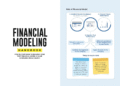
Most Useful Excel Function for Financial Modeling
- Date and Time
- DATE
- EOMONTH
- TODAY
- YEAR
- YEARFRAC
- Financial
- DURATION
- NPV
- PMT
- PPMT
- XIRR
- XNPV
- YIELD
- Information
- ERROR.TYPE
- ISBLANK
- Logical
- AND
- IF
- IFERROR
- IFS
- OR
- CHOOSE
- HLOOKUP
- INDEX
- MATCH
- OFFSET
- VLOOKUP
- Math
- ABS
- SUMIF
- Statistical
- AVERAGE
- CORREL
- COUNT
- COUNTA
- COUNTIF
- RANK
- SMALL
Each chapter is designed to be comprehensive yet easy to understand, making it suitable for users of all skill levels.
Why the Document
With countless resources available online, you might wonder why you should choose this particular PDF guide. Here are a few reasons:
- Comprehensive Coverage: The guide covers a wide range of topics, ensuring you have all the information you need in one place.
- Easy to Understand: Written in clear, concise language, the document is accessible to users at all levels.
- Practical Examples: Real-world examples are included to help you apply what you’ve learned.
- Updated Content: The guide is regularly updated to include the latest features and best practices.
Professional Spreadsheet Standards: Build Workbooks Others Can Trust
What separates a professional’s Excel file from an amateur’s is rarely advanced formulas. It is structure, clarity and control. These are the standards used in finance, consulting and operations teams.
1. Separate inputs, calculations and outputs
Keep assumptions and raw data on input sheets, calculations on working sheets and results on a summary or dashboard sheet. A reader should be able to change an input in one place and see every output update.
2. Make inputs obvious
- Use a consistent colour code: blue font for hard-coded inputs, black for formulas, green for links to other sheets.
- Never bury a number inside a formula (
=B2*1.14). Put 1.14 in a labelled cell such as “VAT factor” and reference it. - Add Data Validation (Data › Data Validation) to input cells so users can only enter allowed values or pick from a list.
3. Keep formulas simple and consistent
- One formula pattern per row, copied across all columns. Inconsistent formulas are the most common source of spreadsheet errors.
- Break long formulas into helper columns, or use
LETto name the parts. - Prefer XLOOKUP or INDEX/MATCH to VLOOKUP with hard-coded column numbers.
- Avoid volatile functions such as OFFSET and INDIRECT in large models; they slow down recalculation.
4. Build in checks
Add a checks section that shows “OK” or “ERROR”, for example:
- Totals that must agree:
=IF(ROUND(SUM(Detail)-Total,2)=0,"OK","ERROR") - Balance sheet balances, no negative stock, percentages add up to 100%.
- A master check at the top of the summary sheet:
=IF(COUNTIF(Checks,"ERROR")=0,"All checks OK","Review errors").
5. Document as you go
- A cover sheet with the purpose, owner, version, date and a short guide to the tabs.
- Notes next to key assumptions explaining the source.
- Clear sheet names (Inputs, Calc_Revenue, Summary) instead of Sheet1, Sheet2.
6. Format for reading, not decoration
- Right-align numbers, use thousands separators and consistent decimals.
- Use Center Across Selection (Ctrl + 1 › Alignment) instead of merging cells.
- Freeze panes on headers, and group (Data › Group) detail rows instead of hiding them.
7. Share and protect safely
- Protect formula cells (unlock input cells first via Ctrl + 1 › Protection, then Review › Protect Sheet).
- Save to OneDrive or SharePoint to co-author and keep version history instead of emailing copies.
- Remove personal information and hidden data before sending externally (File › Info › Check for Issues › Inspect Document).
Frequently Asked Questions
Why shouldn’t I merge cells in Excel?
Merged cells break sorting, filtering, copying and keyboard navigation. Center Across Selection gives the same look without those problems.
How do I lock formulas but allow data entry?
Select the input cells, press Ctrl + 1, and untick Locked on the Protection tab. Then turn on Review › Protect Sheet. Users can edit the inputs but not the formulas.
Related guides
- Microsoft Excel Advanced Participant Guide PDF
- Finance Excel Guidelines for Accountants
- The Ultimate Guide to Financial Modeling PDF
Conclusion
This book is intended to provide accurate information with regard to the subject matter covered at the time of publication. However, the author and publisher accept no legal responsibility for errors or omissions in the subject matter contained in this book, or the consequences thereof.
Download PDF
Ready to take your Excel skills to the next level? Click the link below to download your copy of ‘Microsoft Excel for Professionals.’