Introduction
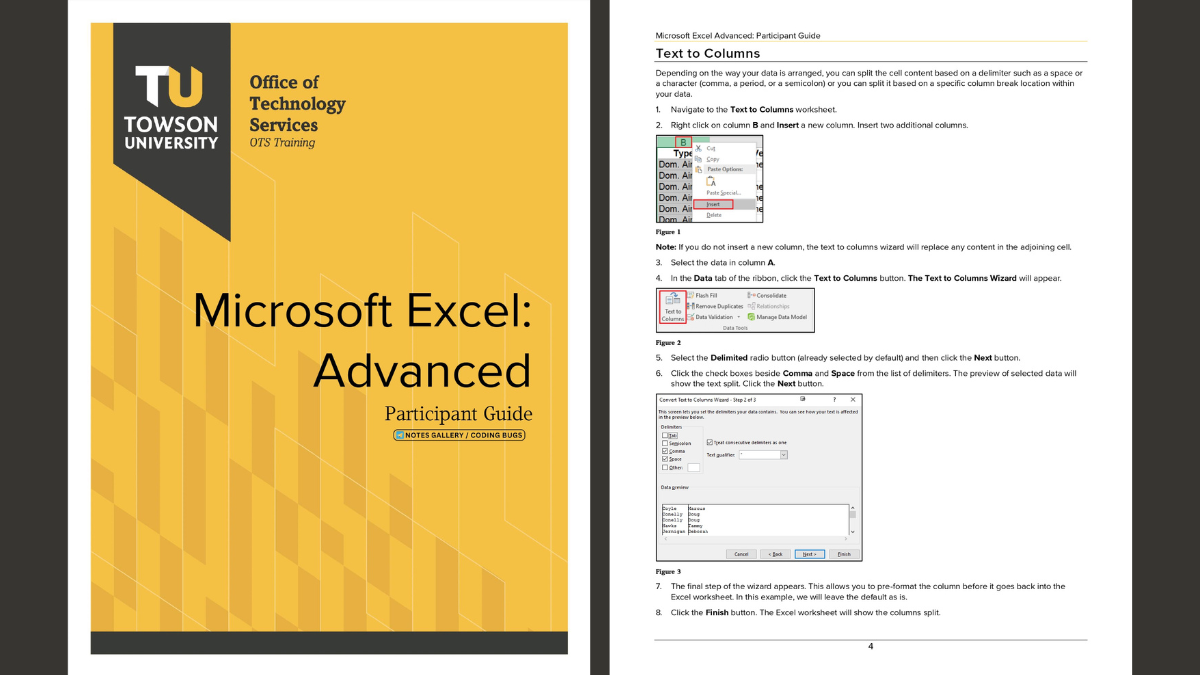
Microsoft Excel is an essential tool for numerous professional tasks, from data analysis to financial modeling. Whether you are a seasoned user or an aspiring Excel expert, our “Microsoft Excel Advanced – Participant Guide” PDF is designed to help you master the advanced features of Excel. In this blog post, we will introduce this comprehensive guide and provide a link to download the PDF.
Overview of the Document
The “Microsoft Excel Advanced – Participant Guide” is packed with detailed instructions and practical examples to enhance your Excel skills. This guide is suitable for advanced users who are looking to optimize their workflow and utilize Excel’s full potential.
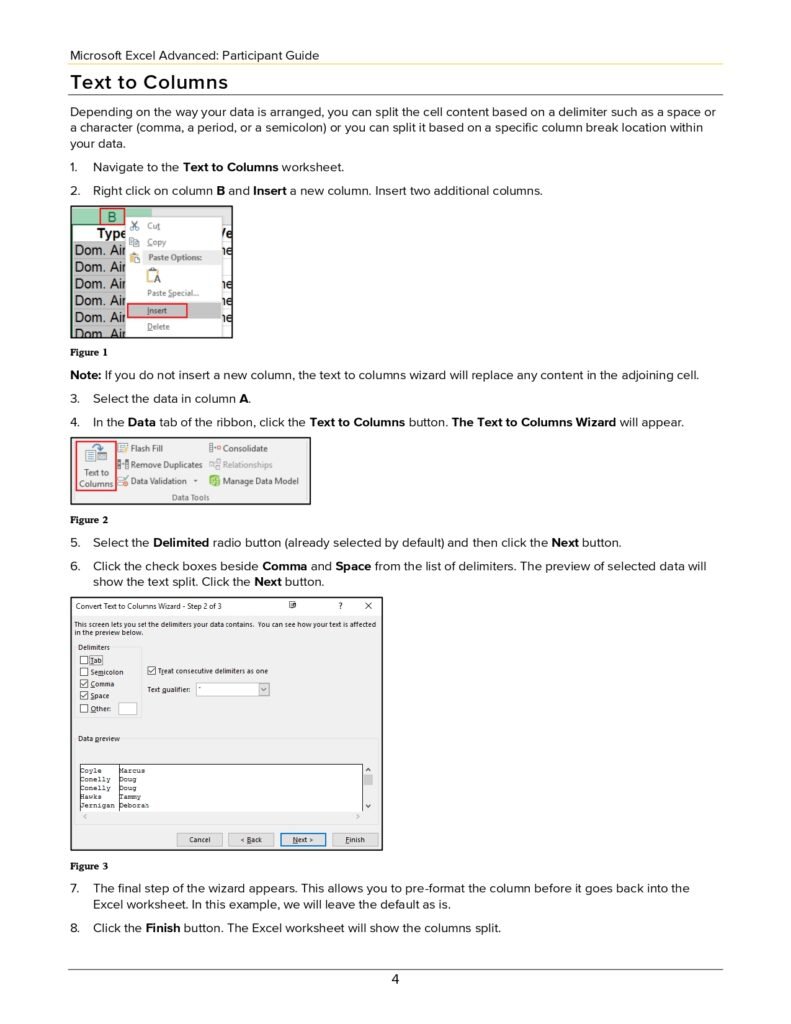
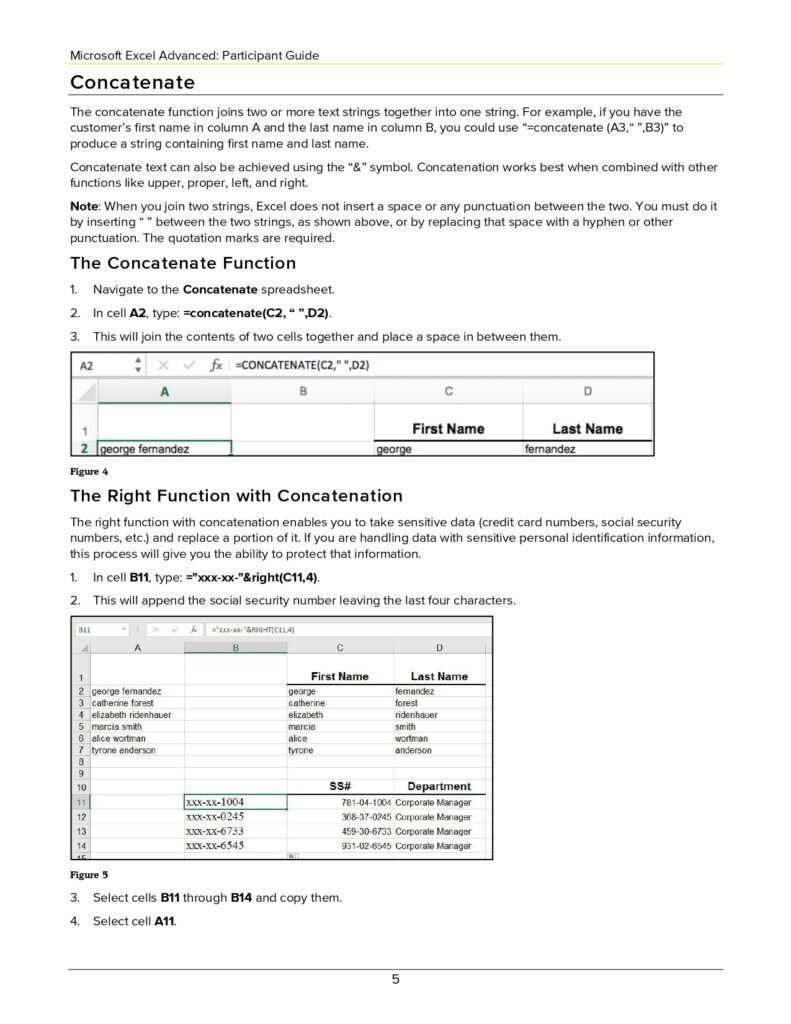
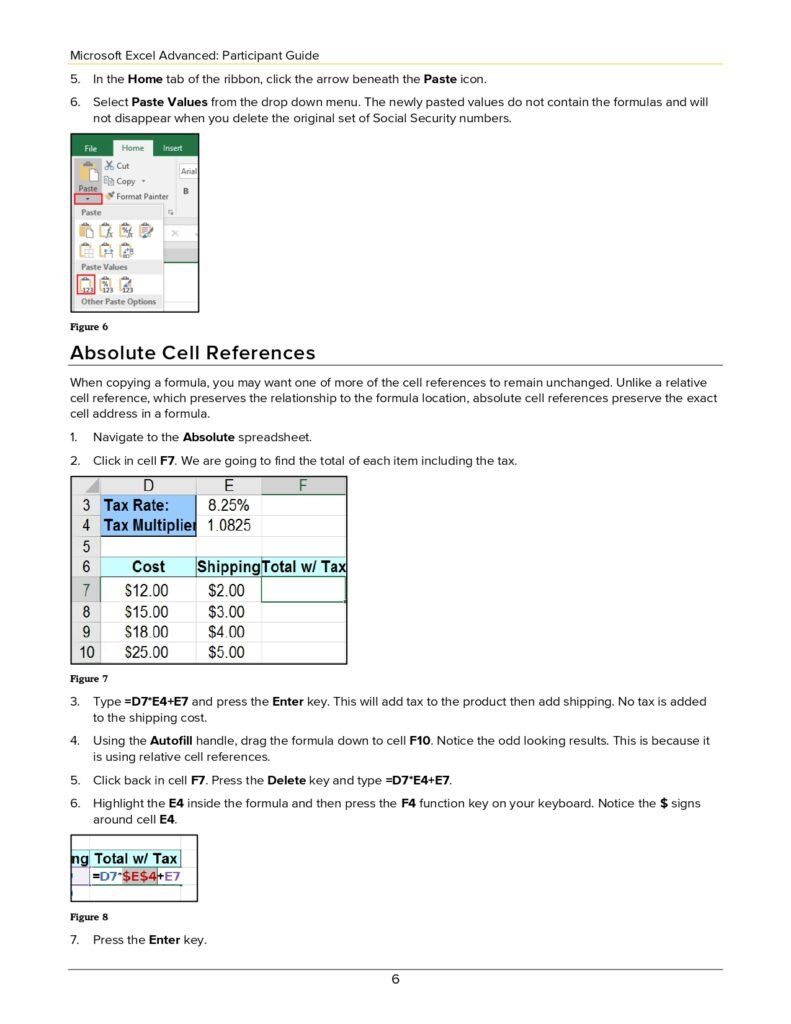
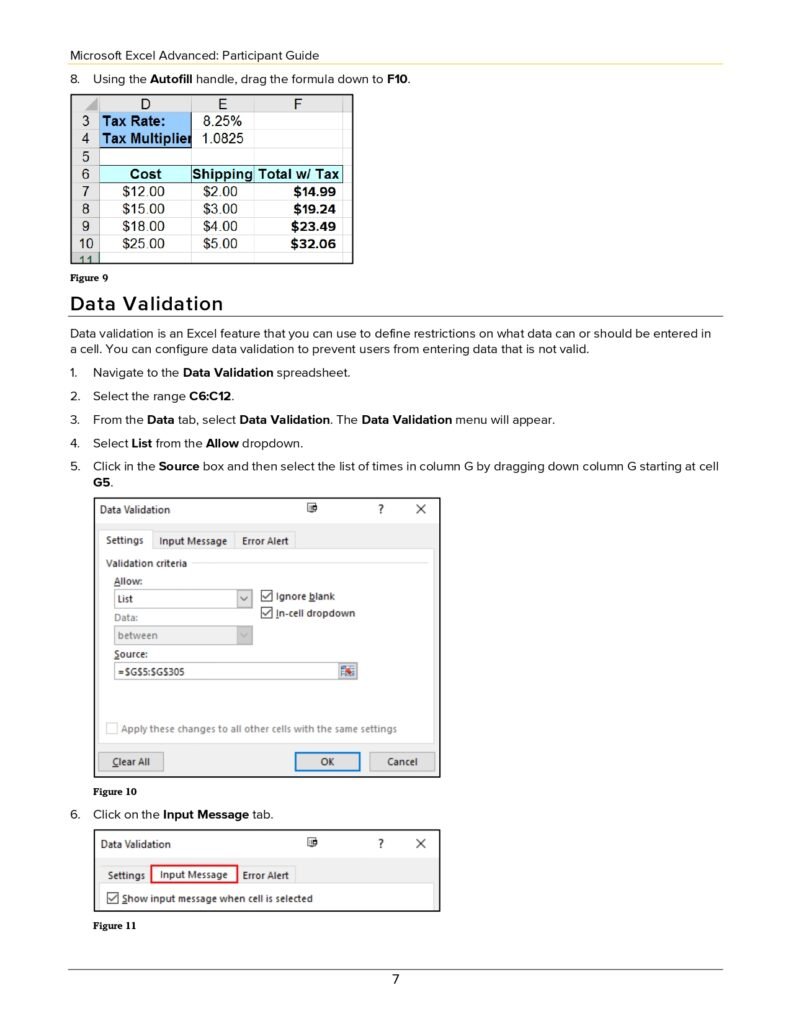
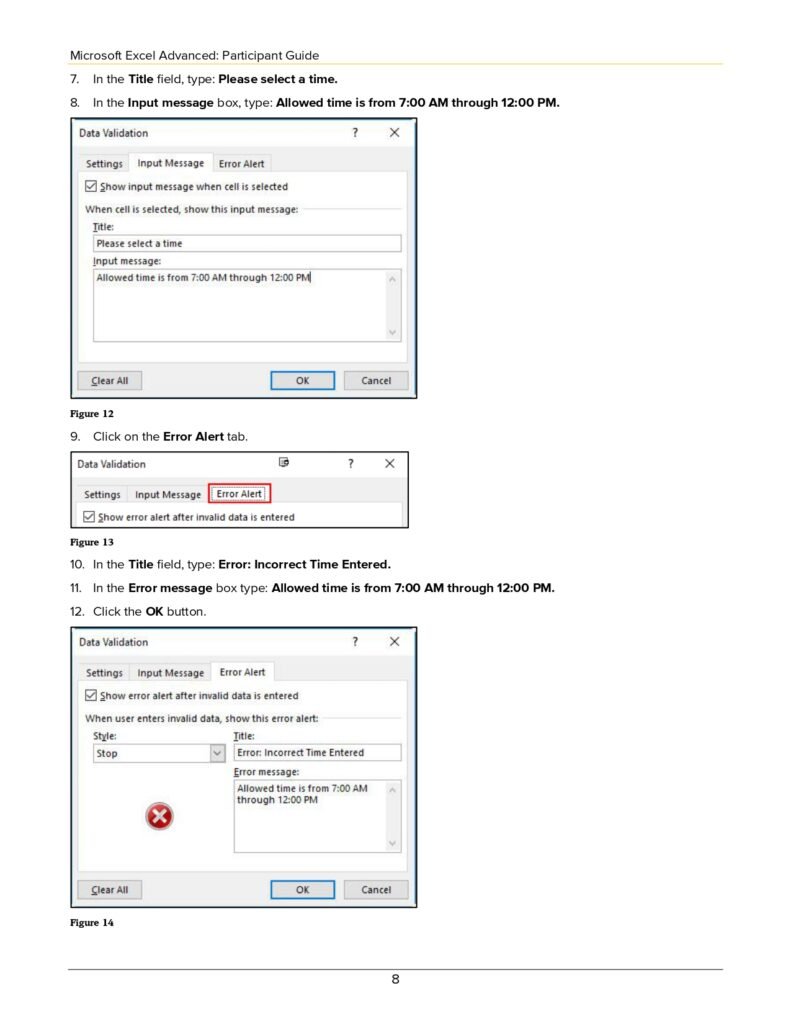
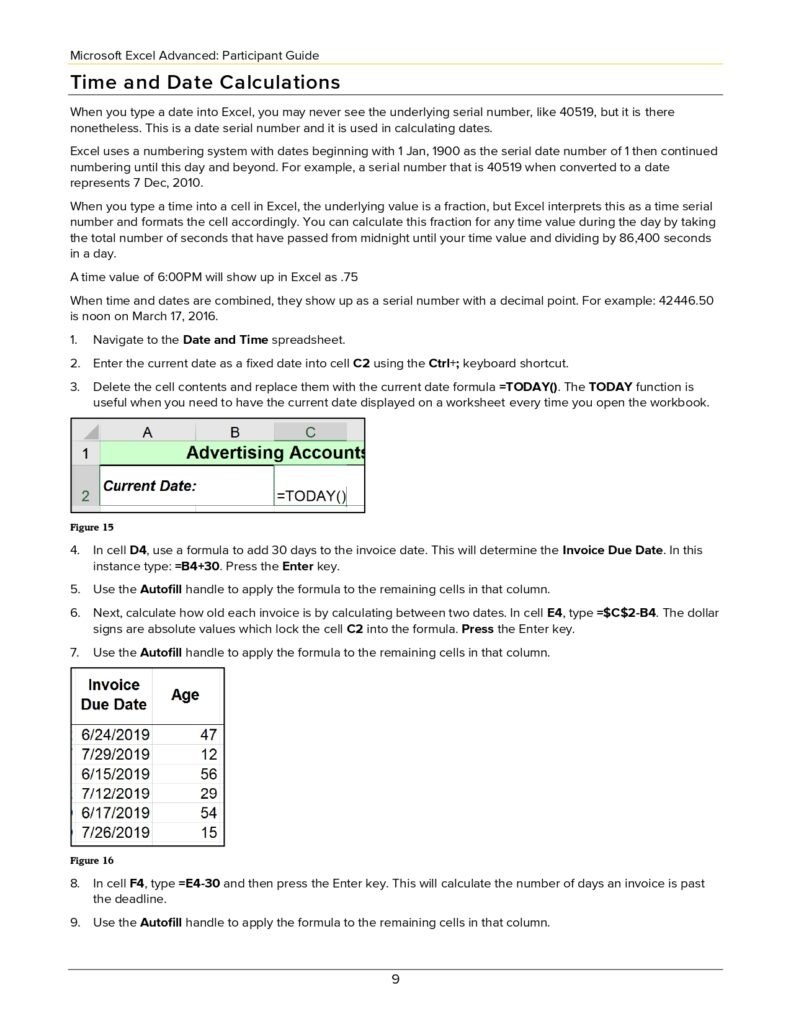
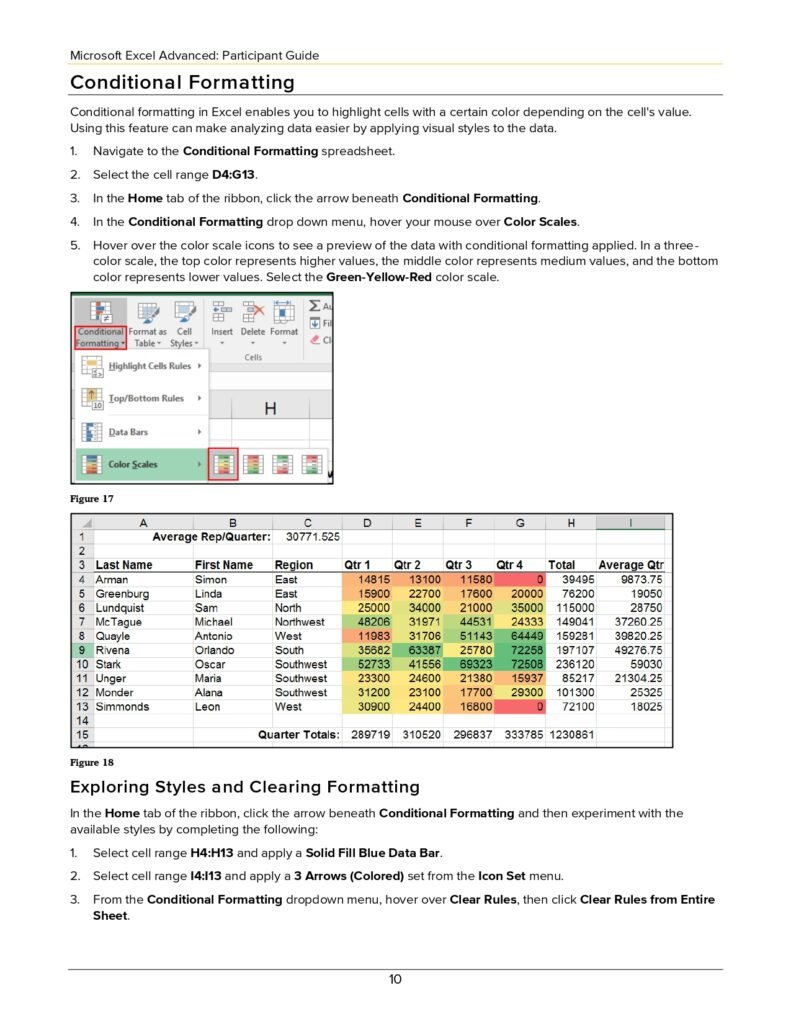
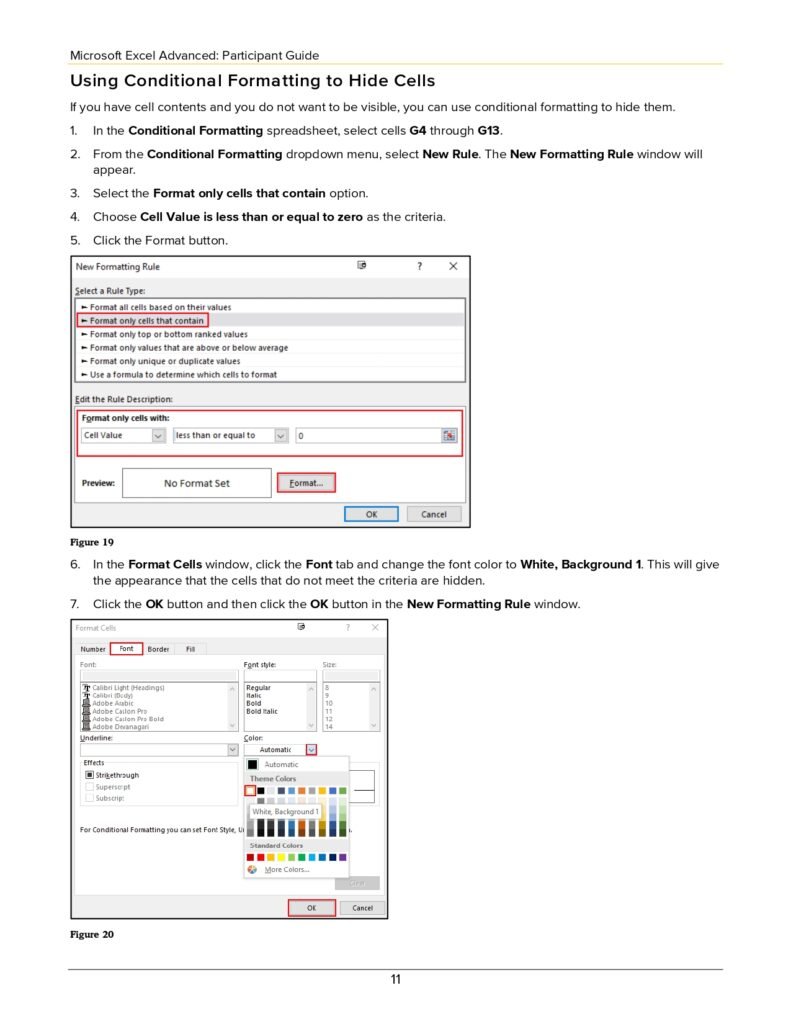
It covers various advanced functions, tools, and techniques to improve your efficiency and accuracy in handling complex data.
The Content
The participant guide PDF includes sections on advanced formulas and functions, data analysis, pivot tables, macros, and automation. Each section provides step-by-step tutorials and real-world examples to help you understand and apply the techniques in your daily tasks. The guide also includes tips and tricks to troubleshoot common issues and best practices for optimizing your Excel experience.
- Text to Columns
- Concatenate
- The Concatenate Function
- The Right Function with Concatenation
- Absolute Cell References
- Data Validation
- Time and Date Calculations
- Conditional Formatting
- Exploring Styles and Clearing Formatting
- Using Conditional Formatting to Hide Cells
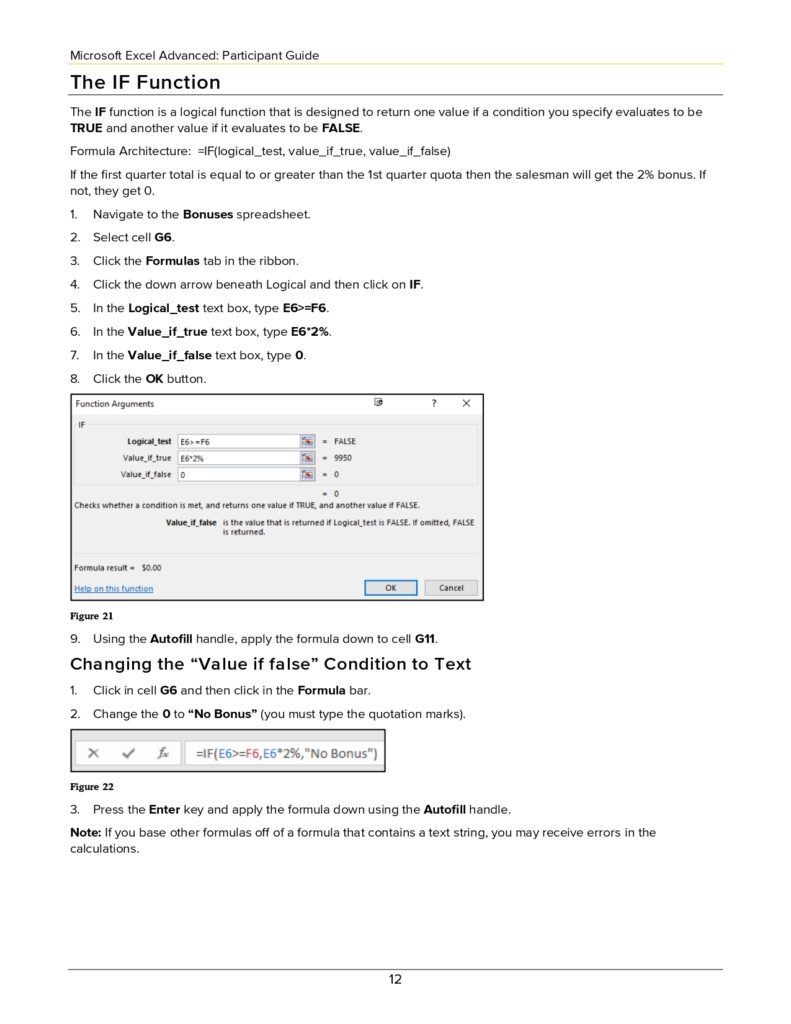
- The IF Function
- Changing the “Value if false” Condition to Text
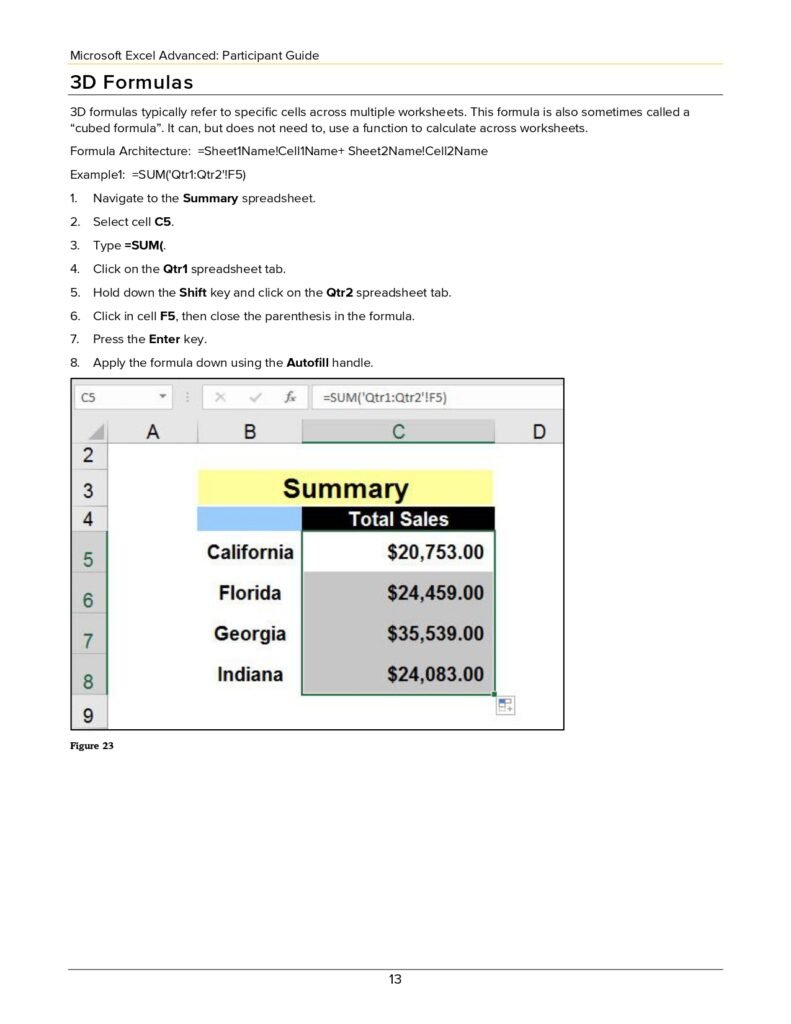
- 3D Formulas
- Pivot Tables
- Creating a Pivot Table
- Specifying PivotTable Data
- Changing a PivotTables Calculation
- Filtering and Sorting a PivotTable
- Creating a PivotChart
- Grouping Items
- Updating a PivotTable
- Formatting a PivotTable
- Using Slicers
- Charts
- Creating a Simple Chart
- Chart Terminology
- Charting Non-Adjacent Cells
- Creating a Chart Using the Chart Wizard
- Modifying Charts
- Moving an Embedded Chart
- Sizing an Embedded Chart
- Changing the Chart Type
- Chart Types
- Changing the Way Data is Displayed
- Moving the Legend
- Formatting Charts
- Adding Chart Items
- Formatting All Text
- Formatting and Aligning Numbers
- Formatting the Plot Area
- Formatting Data Markers
- Pie Charts
- Creating a Pie Chart
- Moving the Pie Chart to its Sheet
- Adding Data Labels
- Exploding a Slice of a Pie Chart
- Rotating and Changing the Elevation of a Pie Chart
Why the Document
This guide is an indispensable resource for anyone striving to advance their Excel skills. By following the instructions in this PDF, you will be able to handle complex data with ease, create sophisticated reports, and automate repetitive tasks. The systematic approach of the guide ensures that you can follow along and progressively build your expertise.
Advanced Excel Techniques Explained
The participant guide follows a classroom course. This section expands on the advanced techniques that give the biggest payoff at work, with step-by-step instructions.
Dependent drop-down lists
A second list that changes based on the first (for example Country › City):
- Put each country’s cities in a column with the country name as header, and name each range after its country (Formulas › Create from Selection › Top row).
- For the first drop-down, use Data Validation › List with the country names.
- For the second drop-down, use Data Validation › List with the source
=INDIRECT(A2), where A2 holds the selected country.
In Microsoft 365 you can avoid named ranges by spilling the city list with =FILTER(Cities[City],Cities[Country]=A2) in a helper cell and pointing the validation at =F2#.
Advanced Filter: extract matching records to another place
- Above or beside the data, copy the header names and type criteria under them (criteria on the same row are AND; on separate rows they are OR).
- Data › Advanced, choose Copy to another location, set the list range, criteria range and destination.
It is useful for complex OR conditions and for pulling a unique list (tick Unique records only).
What-If Analysis
- Goal Seek: find the input that produces a target result (the interest rate that makes a payment affordable).
- Data Table: show a formula’s result for a range of one or two inputs at once.
- Scenario Manager: store sets of inputs (best, base, worst case) and create a summary report.
- Solver (File › Options › Add-ins): optimise a result subject to constraints, for example minimise cost while meeting demand.
Consolidate data from several sheets
Data › Consolidate combines ranges with the same layout (such as monthly or branch sheets) into one summary using Sum, Average, Count and more. Tick Create links to source data to keep it updatable. For data that changes regularly, Power Query’s Append is more robust.
Protecting workbooks properly
- Lock formulas, unlock inputs: Ctrl + 1 › Protection › untick Locked for input cells, then Review › Protect Sheet.
- Protect Workbook structure to stop sheets being added, deleted or renamed.
- Allow Edit Ranges to give specific people password access to specific areas.
- Remember that sheet protection prevents accidents, not determined users. Keep truly sensitive data out of shared workbooks.
Recording your first macro
- Show the Developer tab (File › Options › Customize Ribbon › tick Developer).
- Developer › Record Macro, give it a name and a shortcut such as Ctrl + Shift + M.
- Perform the steps (for example format a report), then Stop Recording.
- Save the file as .xlsm. Run the macro again with its shortcut on new data.
Use Use Relative References before recording if the macro should work from whichever cell is selected.
Frequently Asked Questions
What counts as “advanced Excel” for employers?
Usually: XLOOKUP/INDEX-MATCH, nested logic, PivotTables and PivotCharts, What-If Analysis, Power Query, data validation, protection, and basic macros. Financial roles add modelling; analyst roles add dynamic arrays and statistics.
Is VBA still worth learning?
For automating tasks inside desktop Excel, yes. For new automation, also look at Power Query (data preparation) and Office Scripts (Excel for the web).
Related guides
- Microsoft Excel for Professionals PDF
- 5 Excel Features Every Data Analyst Should Know
- Microsoft Excel Manual PDF
Conclusion
If you are serious about mastering Excel and enhancing your productivity, the “Microsoft Excel Advanced – Participant Guide” PDF is the perfect resource for you. It offers a comprehensive approach to learning advanced Excel skills, providing you with the tools you need to succeed.
Download PDF
Don’t miss out on this valuable resource! Download the “Microsoft Excel Advanced – Participant Guide” PDF by clicking the link below: