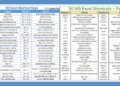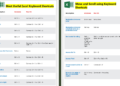
Excel is a powerful spreadsheet software widely used for data analysis, calculations, and reporting. To maximize productivity and work efficiently in Excel, mastering keyboard shortcuts is essential.
Excel is a powerful spreadsheet software widely used for data analysis, calculations, and reporting. To maximize productivity and work efficiently in Excel, mastering keyboard shortcuts is essential. These shortcuts allow users to quickly perform tasks without the need to navigate through menus or use the mouse. By memorizing and utilizing keyboard shortcuts, users can save significant time and streamline their workflow. Whether it’s copying and pasting data, formatting cells, or navigating between worksheets, knowing the right shortcuts can greatly improve efficiency when working with Excel.
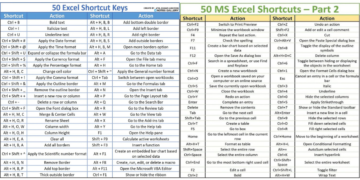
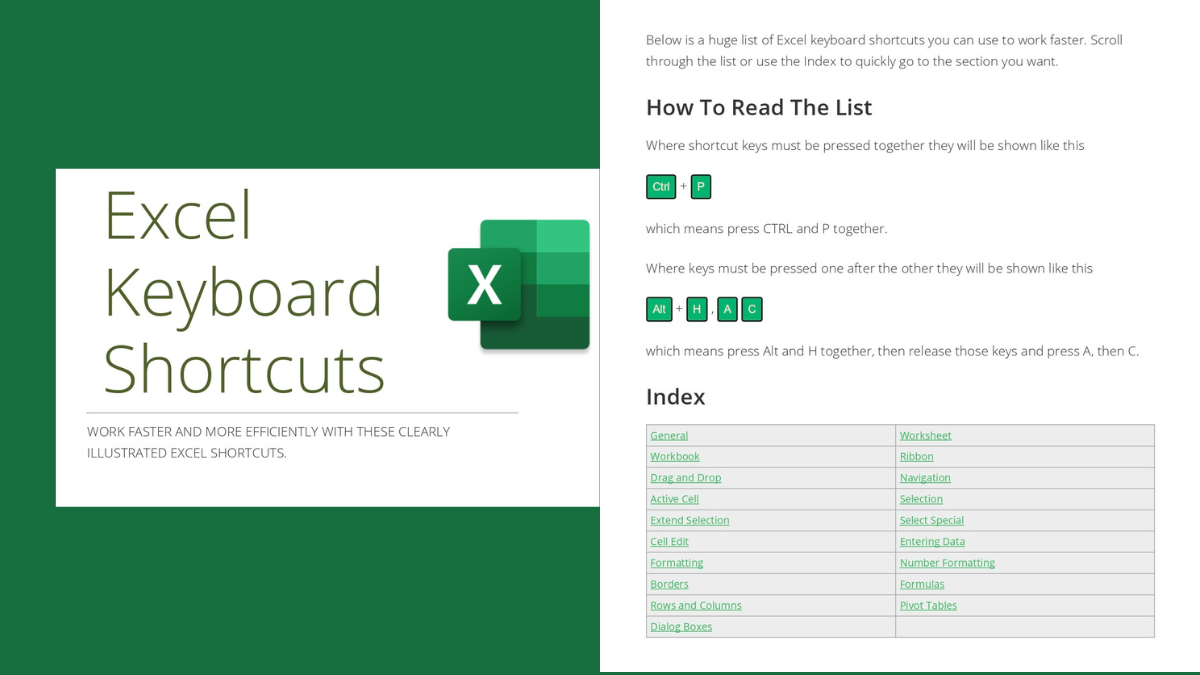
In this PDF, we present a valuable resource for Windows users: an Excel Keyboard Shortcuts PDF. This PDF document provides a comprehensive collection of keyboard shortcuts for Excel, helping you navigate and perform tasks in Excel more quickly and effectively.
Overview of the Notes:
The Excel Keyboard Shortcuts for Windows Users PDF is a comprehensive compilation of commonly used keyboard shortcuts in Excel. It aims to improve your workflow and enhance your productivity by minimizing the need to rely on the mouse or toolbar. This resource covers a wide range of Excel functionalities, making it an indispensable tool for both beginners and experienced users.
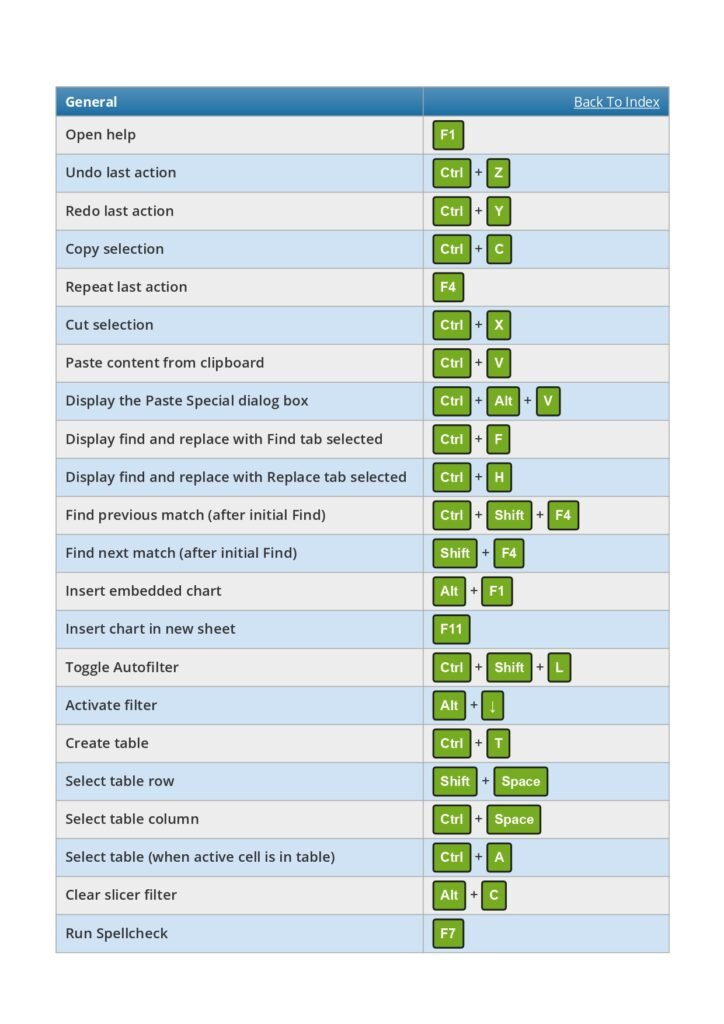
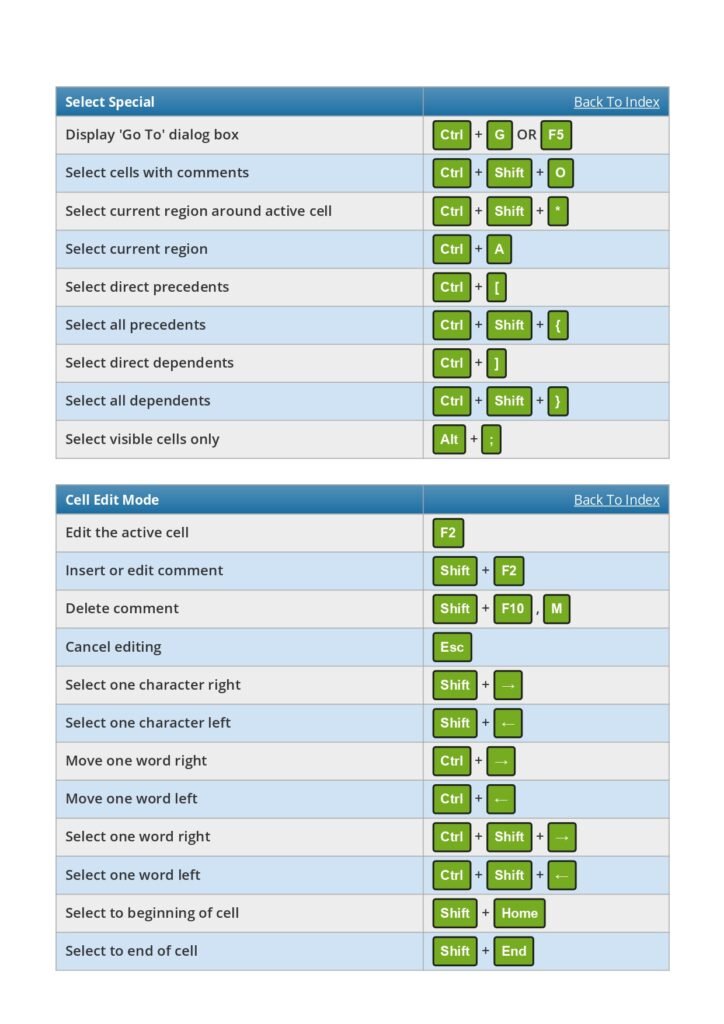
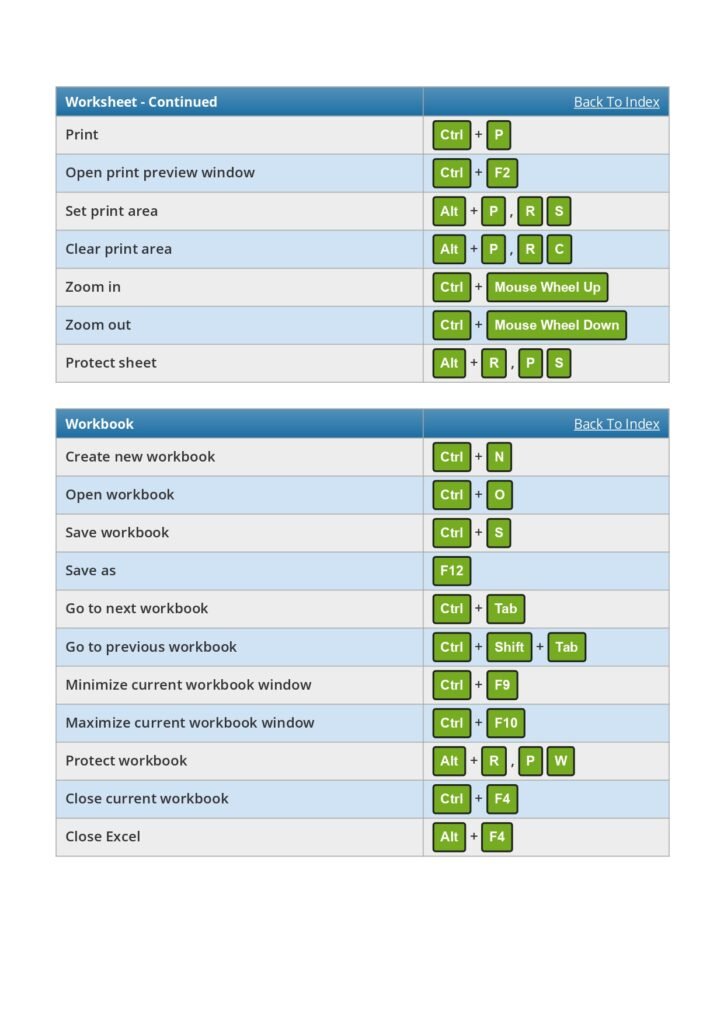
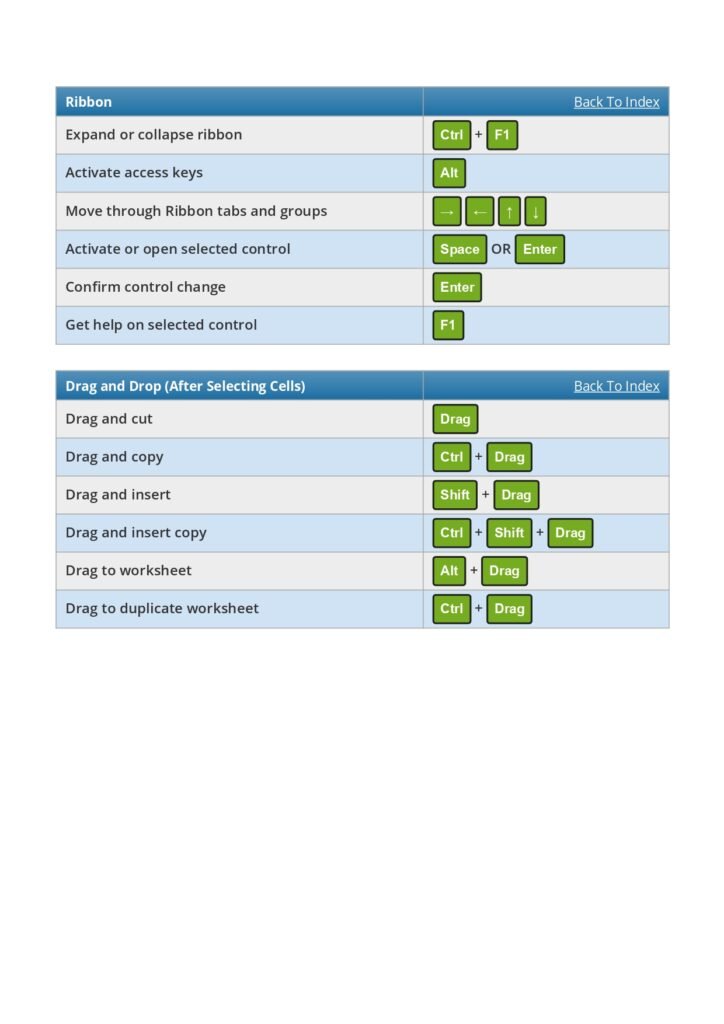
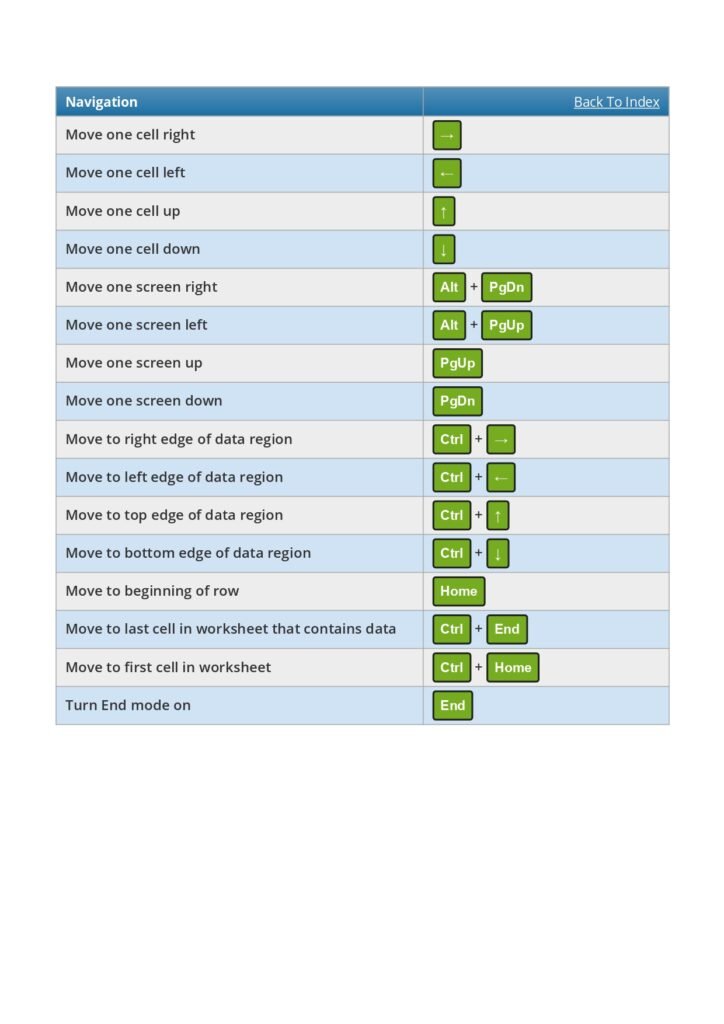
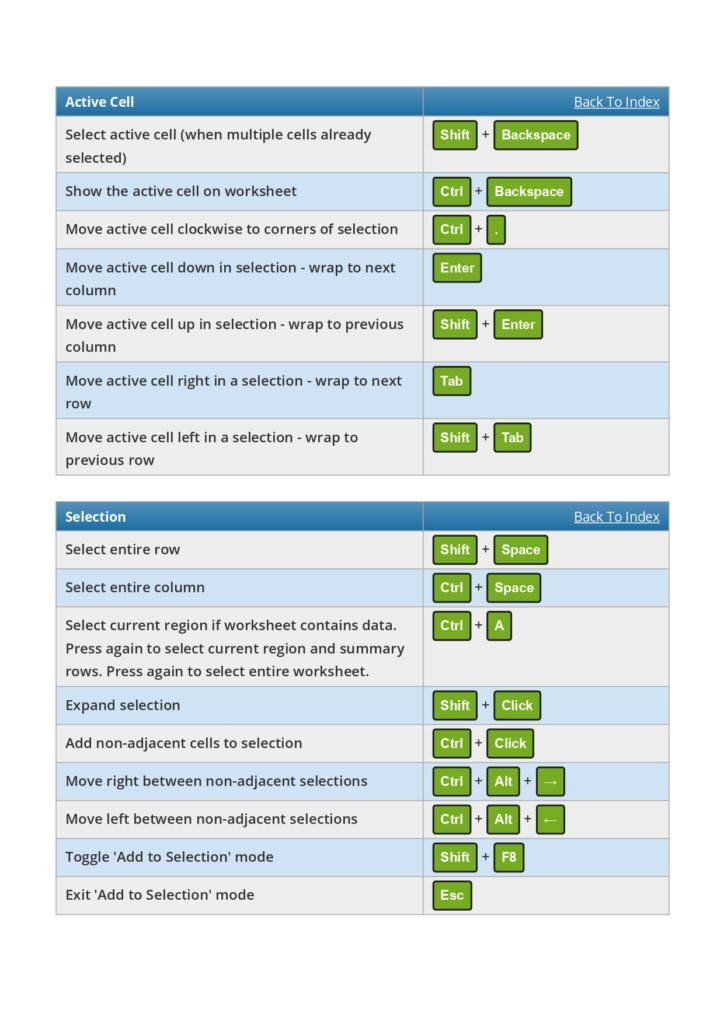
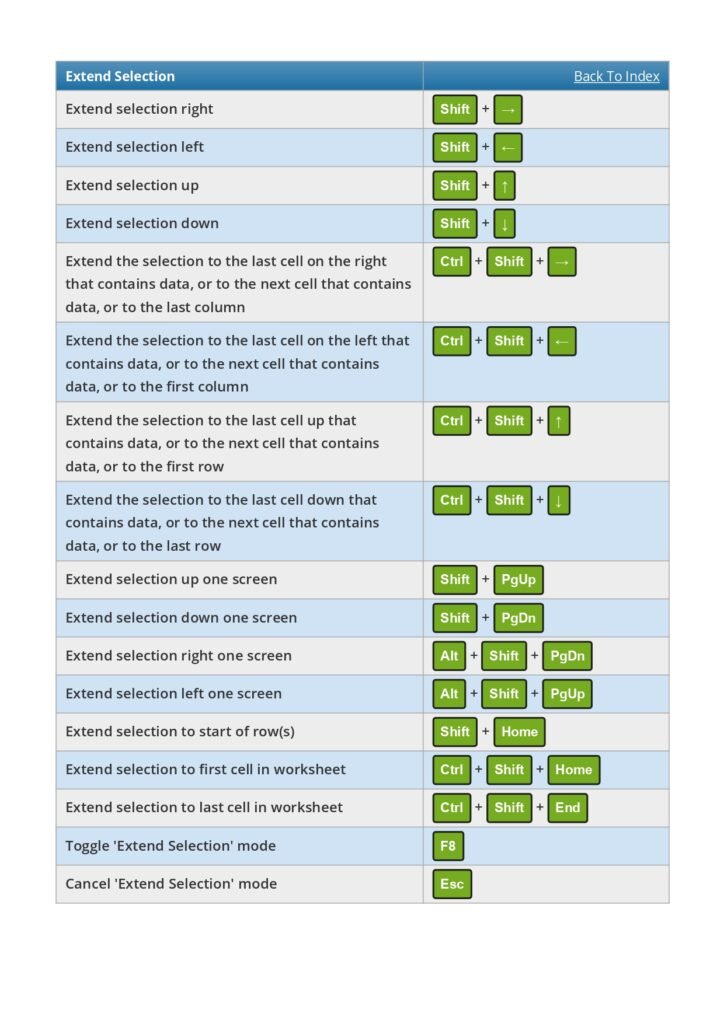
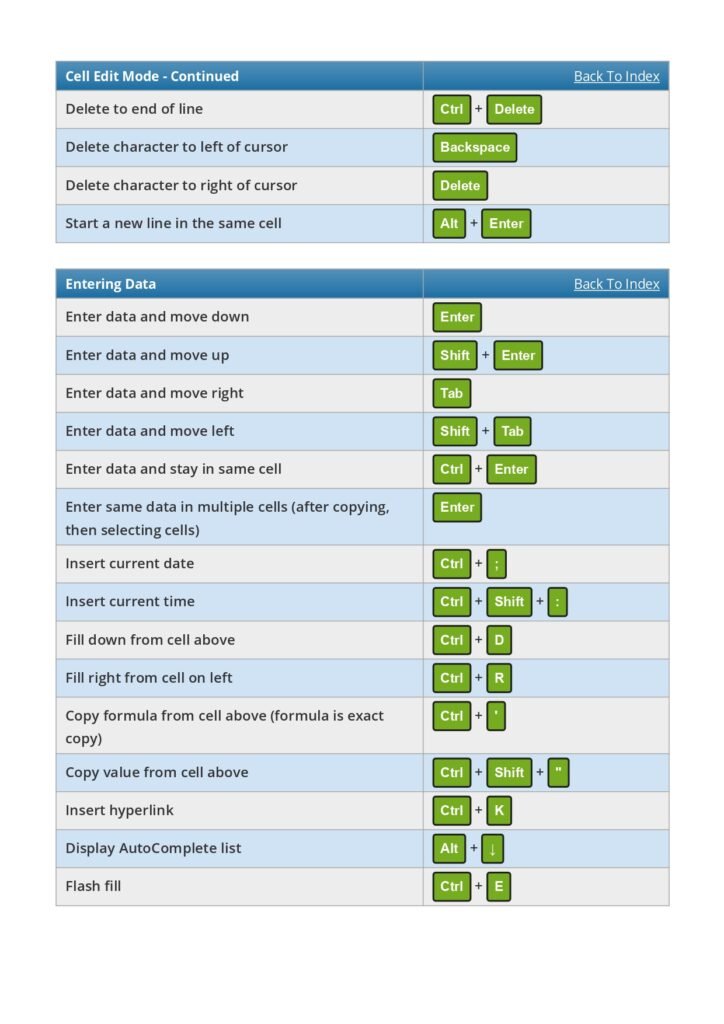
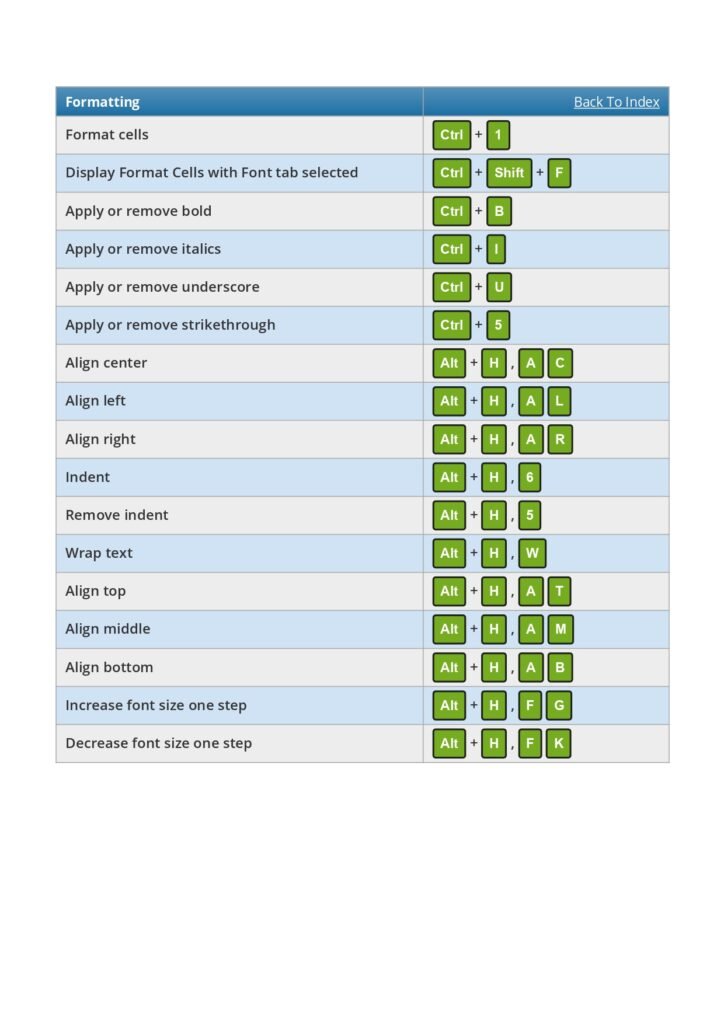


The Content of the Notes:
- General
- Worksheet
- Workbook
- Ribbon
- Drag and Drop
- Navigation
- Active Cell
- Selection
- Extend Selection
- Select Special
- Cell Edit
- Entering Data
- Formatting
- Number Formatting
- Borders
- Formulas
- Rows and Columns
- Pivot Tables
- Dialog Boxes
Why These Notes:
- Improved Efficiency: Mastering keyboard shortcuts reduces the time and effort required to perform tasks in Excel. By using shortcuts, you can navigate, format, and manipulate data more efficiently, ultimately boosting your productivity.
- Time-Saving: Keyboard shortcuts eliminate the need to search through menus and navigate multiple steps using the mouse. They provide a direct and quick way to access various Excel functionalities, saving you valuable time.
- Enhanced Accuracy: Using keyboard shortcuts reduces the chances of making errors that may occur when relying solely on mouse interactions. By executing tasks through shortcuts, you can maintain accuracy and precision in your Excel work.
- Better Workflow: By incorporating keyboard shortcuts into your Excel workflow, you can develop a smoother and more streamlined working process. This helps you focus on the analysis and data manipulation aspects, rather than getting distracted by repetitive tasks.
Ctrl + Letter Shortcuts in Excel: The Complete A–Z Map
If you learn only one family of shortcuts, make it Ctrl + a letter. Here is what every letter does in Excel for Windows, so you can scan the whole alphabet at once.
| Shortcut | Action | Shortcut | Action |
|---|---|---|---|
| Ctrl + A | Select the current region / all | Ctrl + N | New workbook |
| Ctrl + B | Bold | Ctrl + O | Open a workbook |
| Ctrl + C | Copy | Ctrl + P | |
| Ctrl + D | Fill down | Ctrl + Q | Quick Analysis for the selection |
| Ctrl + E | Flash Fill | Ctrl + R | Fill right |
| Ctrl + F | Find | Ctrl + S | Save |
| Ctrl + G | Go To | Ctrl + T | Create a Table |
| Ctrl + H | Find and Replace | Ctrl + U | Underline |
| Ctrl + I | Italic | Ctrl + V | Paste |
| Ctrl + J | Type a line break in Find/Replace (to split or clean text) | Ctrl + W | Close the workbook |
| Ctrl + K | Insert a hyperlink | Ctrl + X | Cut |
| Ctrl + L | Create a Table (same as Ctrl + T) | Ctrl + Y | Redo / repeat |
| Ctrl + M | (not assigned in Excel) | Ctrl + Z | Undo |
Ctrl + number shortcuts
| Shortcut | Action |
|---|---|
| Ctrl + 1 | Format Cells dialog |
| Ctrl + 2 / 3 / 4 | Bold / italic / underline |
| Ctrl + 5 | Strikethrough |
| Ctrl + 8 | Show or hide outline symbols (grouping) |
| Ctrl + 9 / Ctrl + 0 | Hide rows / hide columns |
| Ctrl + Shift + 9 | Unhide rows |
Ctrl + symbol shortcuts
| Shortcut | Action |
|---|---|
| Ctrl + ; | Insert today’s date |
| Ctrl + Shift + : | Insert the current time |
| Ctrl + ‘ | Copy the formula from the cell above |
| Ctrl + Shift + “ | Copy the value from the cell above |
| Ctrl + – | Delete cells / rows / columns |
| Ctrl + Shift + + | Insert cells / rows / columns |
| Ctrl + ` | Show formulas |
Little-known tricks
- Ctrl + J in Find and Replace lets you search for line breaks inside cells (created with Alt + Enter) and replace them with a space.
- Ctrl + Q opens Quick Analysis, with instant charts, totals and conditional formatting for the selected data.
- Ctrl + Shift + 0 (unhide columns) is disabled in some Windows language settings; use right-click › Unhide, or Alt, H, O, U, L instead.
Frequently Asked Questions
What is Ctrl + E in Excel?
Flash Fill. Type an example of the result you want next to your data (for example, a first name extracted from a full name) and press Ctrl + E: Excel fills the rest of the column following the same pattern.
What does Ctrl + T do in Excel?
It converts the selected range into an Excel Table, with filters, banded rows, automatic expansion and structured references in formulas.
Related guides
Conclusion:
The Excel Keyboard Shortcuts for Windows Users PDF is an invaluable resource for anyone working with Excel. By mastering these keyboard shortcuts, you can significantly enhance your productivity, improve your workflow, and work more efficiently in Excel. Practice using the shortcuts regularly to reinforce your knowledge and make them second nature. Embrace the power of keyboard shortcuts and elevate your Excel skills to new heights!
Nu Of Pages:
16 Pages