Introduction
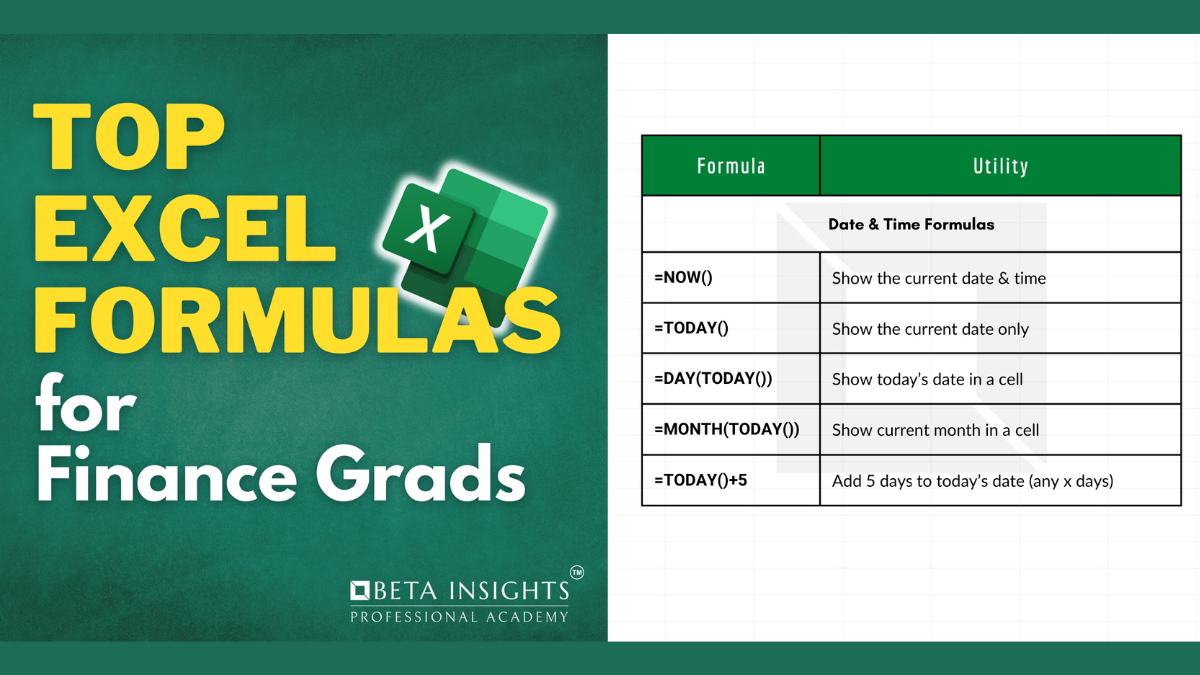
Excel is an indispensable tool for finance professionals, and mastering its formulas can significantly enhance your efficiency and accuracy. In this post, we introduce a comprehensive PDF document titled ‘Top Excel Formulas for Finance Grads’ that you can download. This resource is designed to help finance graduates become proficient in key Excel formulas essential for their careers.
Overview of the Document
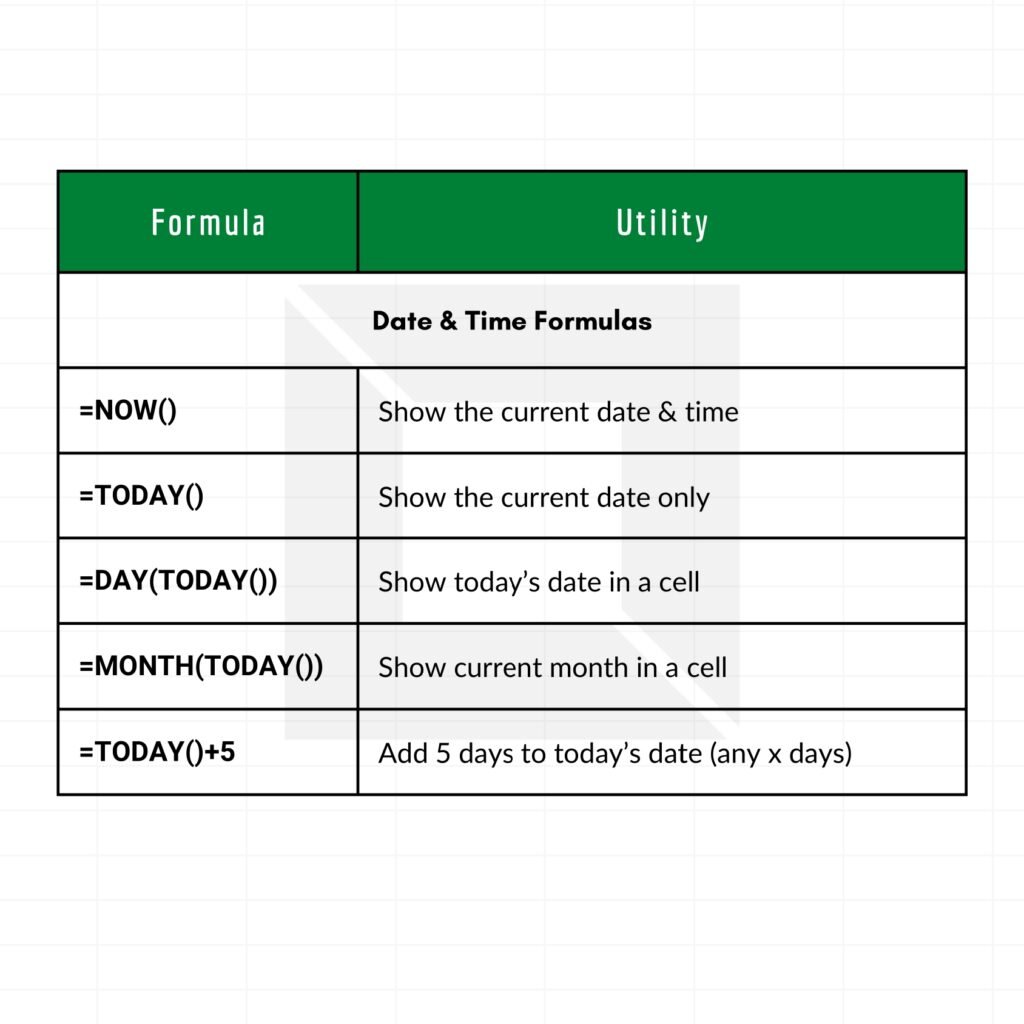
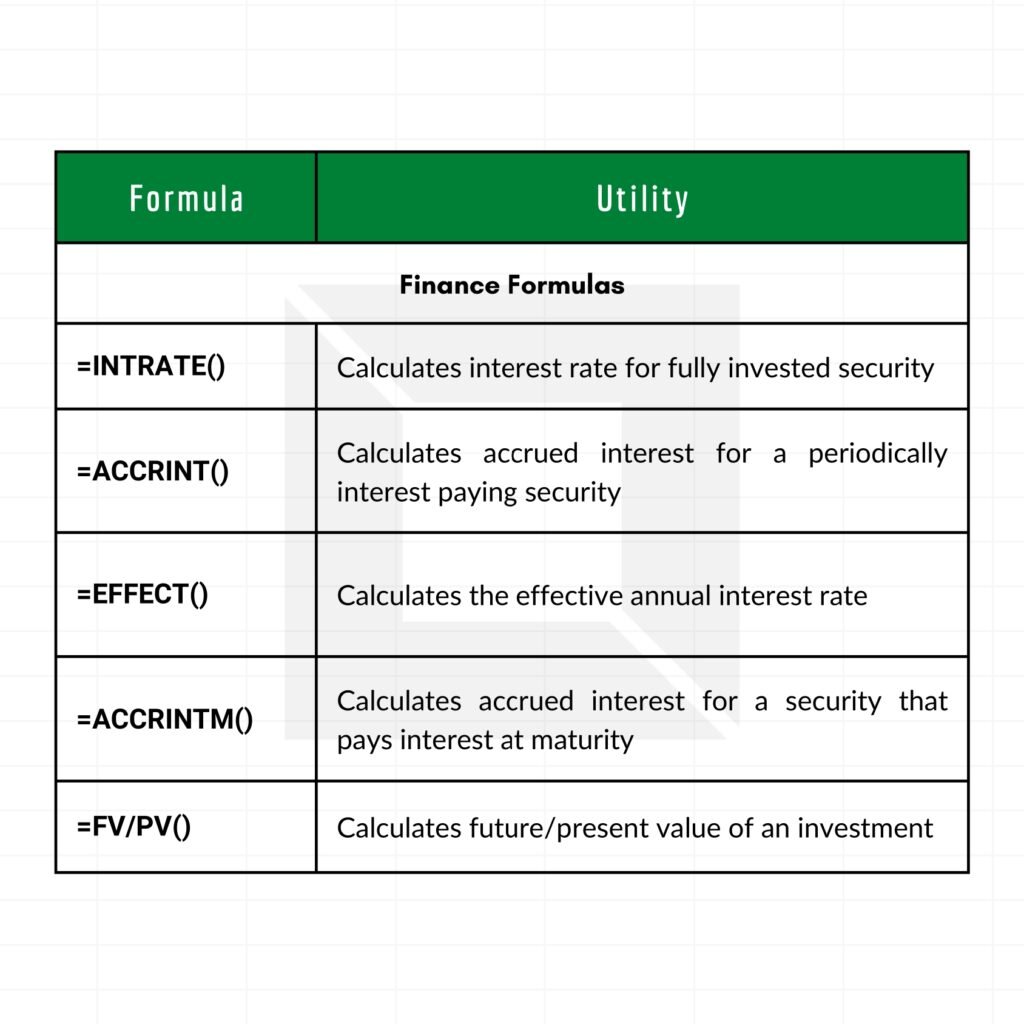
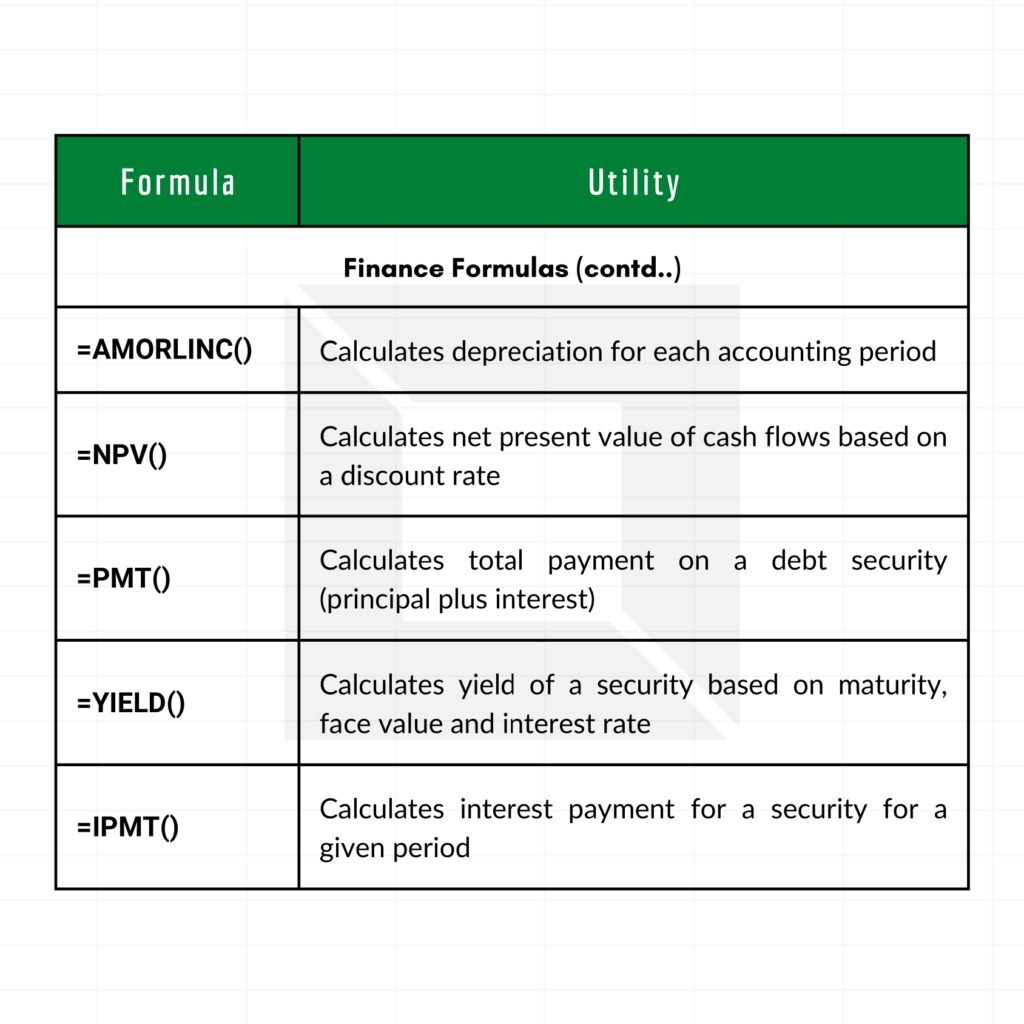
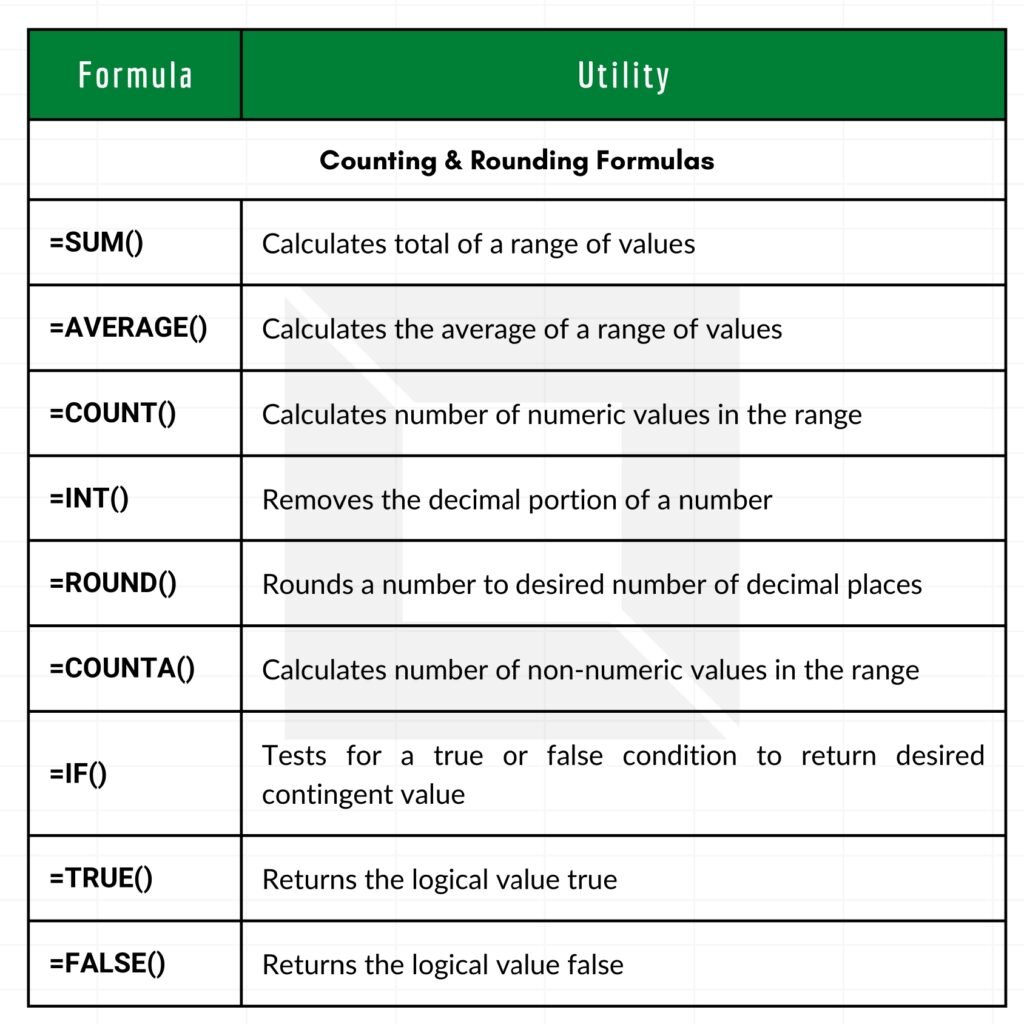
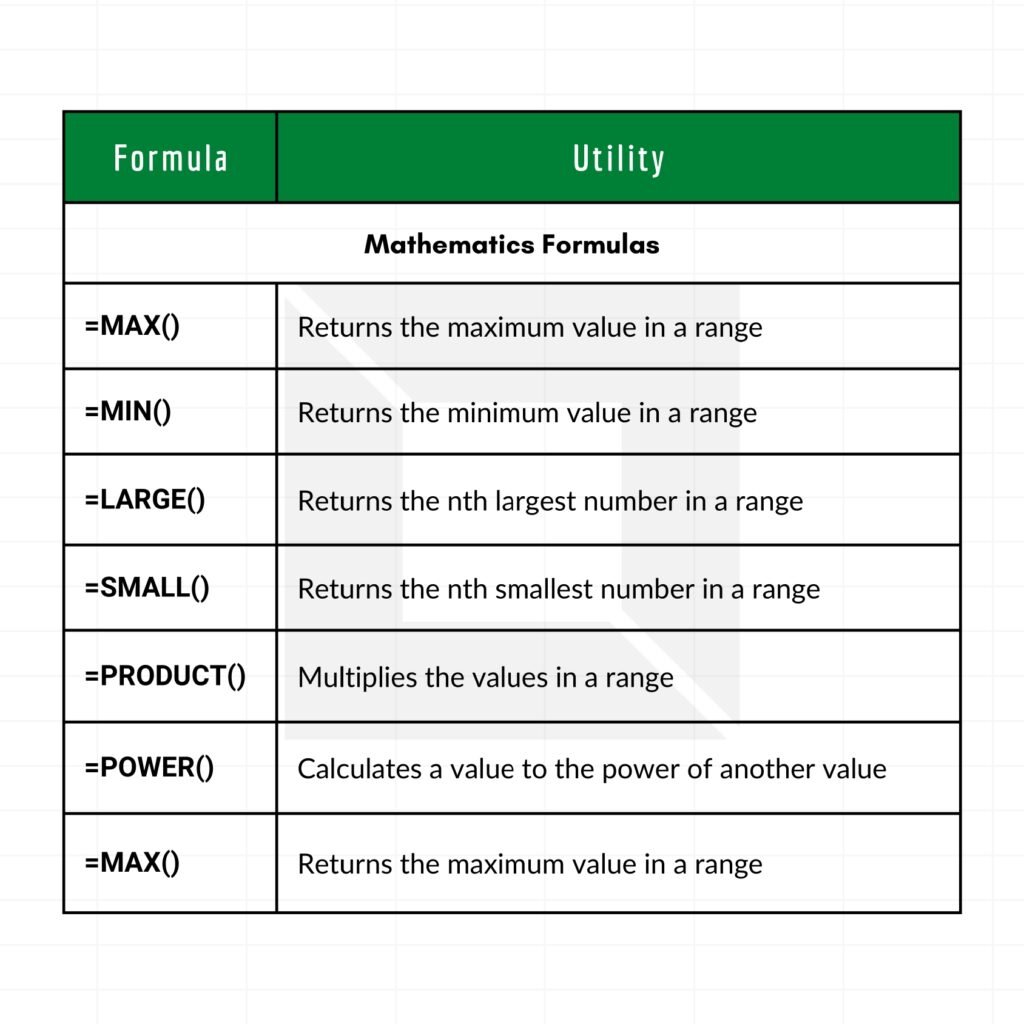
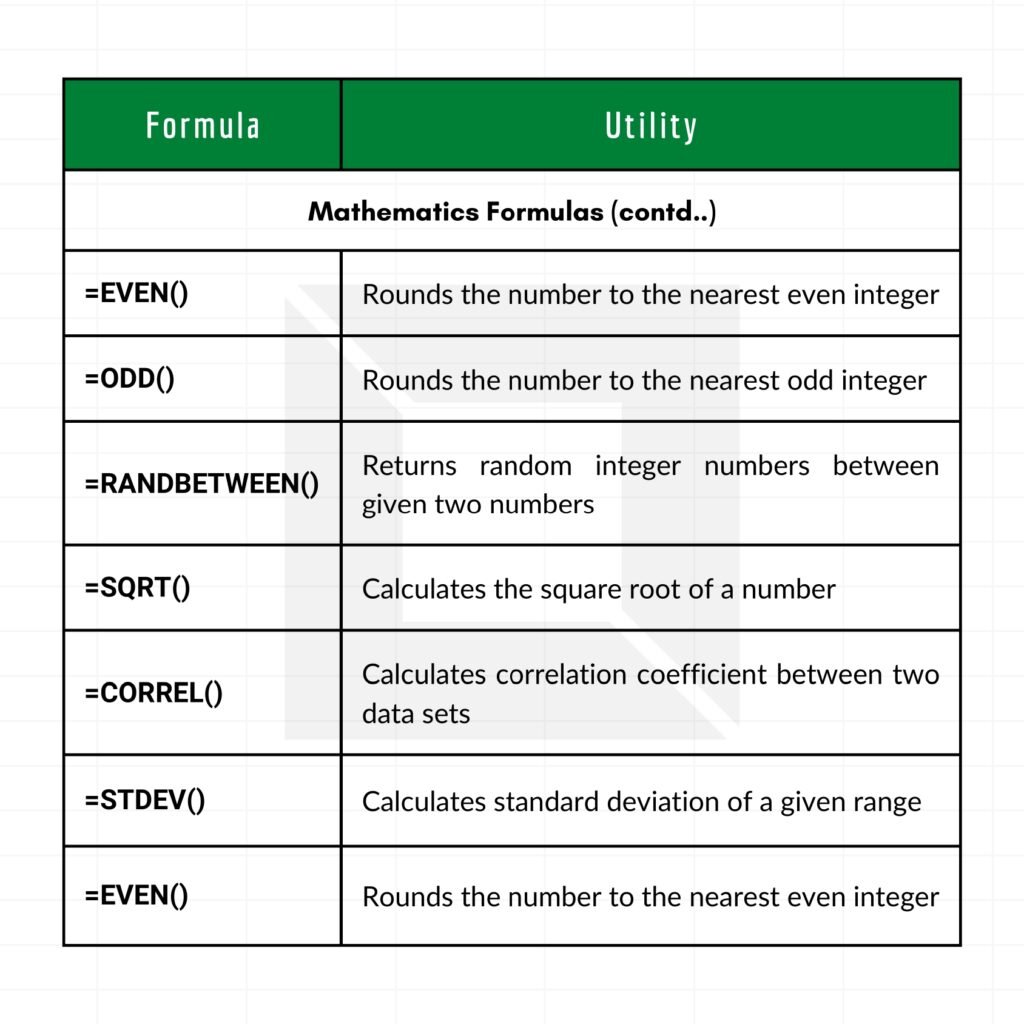
The PDF document provides a detailed guide to the most important Excel formulas that finance professionals need to know. From basic functions to more advanced calculations, this guide covers everything you need to streamline financial analysis and reporting. Whether you are a recent graduate or looking to refresh your Excel skills, this document will serve as a valuable resource.

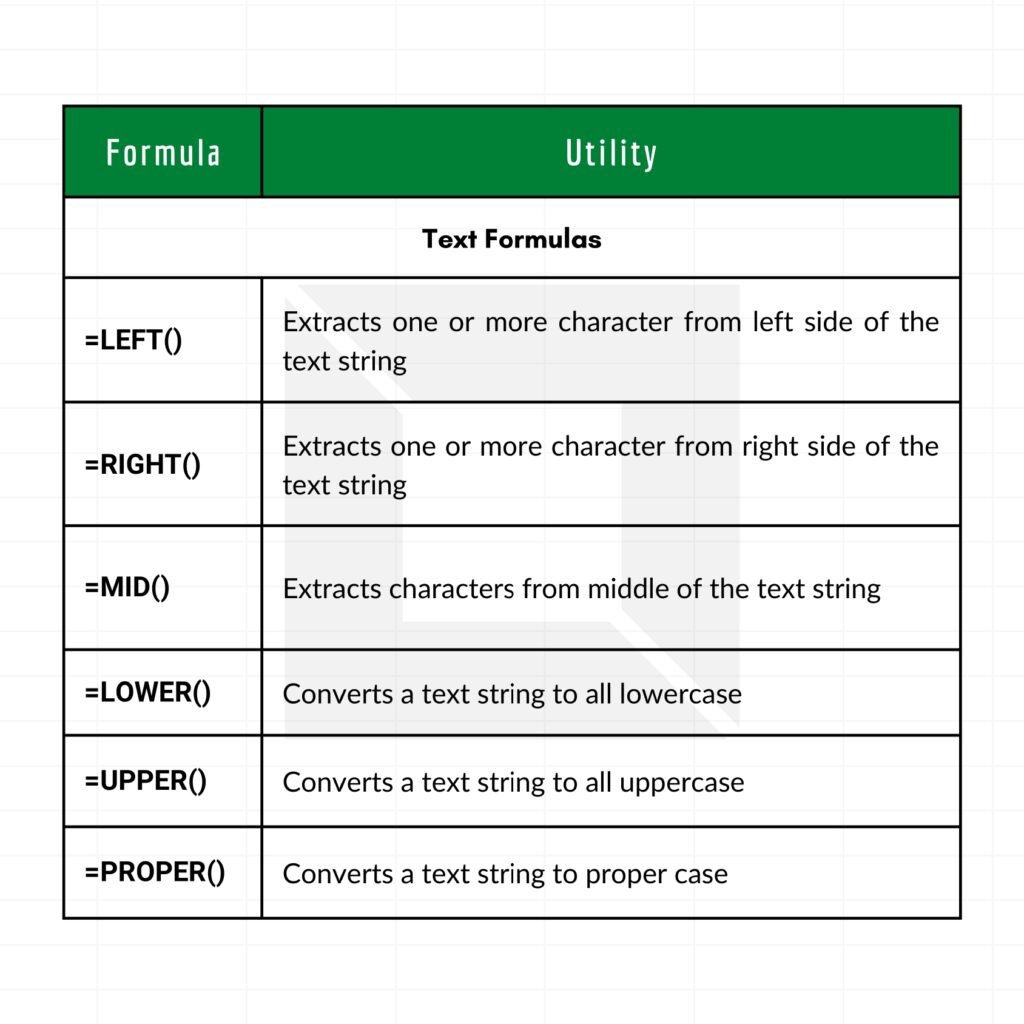
The Content
The ‘Top Excel Formulas for Finance Grads’ PDF is structured to ensure a smooth learning experience. It includes:
- An introduction to Excel basics
- Step-by-step instructions for each formula
- Examples and practical applications
- Tips for avoiding common mistakes
- A section on advanced formulas for complex financial analysis
Each section is designed to build your proficiency progressively, ensuring you gain a thorough understanding of each formula and its application in real-world finance scenarios.
Why the Document
In the competitive field of finance, having a strong command of Excel is crucial. This document was created to provide a focused and practical guide tailored specifically for finance graduates. By mastering these formulas, you will be able to perform tasks more efficiently, reduce errors, and enhance your overall productivity. The document is a result of extensive research and practical experience, making it a reliable resource for anyone looking to excel in finance.
Essential Excel Finance Formulas with Worked Examples
These are the functions finance graduates use in their first year on the job, in banking, corporate finance, FP&A and accounting. Each example below has been calculated so you can check your own spreadsheet against it.
Time value of money
| Function | What it calculates | Example | Result |
|---|---|---|---|
| PMT | Loan or annuity payment per period | =PMT(6%/12,60,-100000) (100,000 loan, 6% a year, 5 years, monthly) | 1,933.28 per month |
| FV | Future value of regular savings | =FV(5%,10,-1000) (1,000 a year for 10 years at 5%) | 12,577.89 |
| PV | Present value of future payments | =PV(8%,5,-2000) (2,000 a year for 5 years at 8%) | 7,985.42 |
| RATE | Interest rate per period | =RATE(60,-1933.28,100000)*12 | ≈ 6% a year |
| NPER | Number of periods needed | =NPER(6%/12,-1933.28,100000) | ≈ 60 months |
Sign convention: Excel treats money you pay out as negative and money you receive as positive. If PMT, FV or PV return a negative number you did not expect, check the signs of your inputs.
Splitting loan payments: IPMT and PPMT
Each loan payment is part interest and part principal. For the loan above, =IPMT(6%/12,1,60,-100000) returns 500.00 of interest in month 1 (100,000 × 0.5%), and =PPMT(6%/12,1,60,-100000) returns 1,433.28 of principal. Together they equal the 1,933.28 payment. Copy them down 60 rows and you have a full amortisation schedule.
Investment appraisal: NPV and IRR
Consider a project that costs 1,000 today and returns 300, 400 and 500 over the next three years.
- NPV at 10%:
=NPV(10%,C2:E2)+B2, where B2 holds −1,000, returns about −21.04. The project destroys value at a 10% required return. - IRR:
=IRR(B2:E2)returns about 8.9%, below the 10% hurdle, which agrees with the negative NPV.
Common mistake: NPV in Excel discounts the first value in the range by one period. Keep the time-0 investment outside the function and add it separately, as shown above.
When cash flows do not arrive at regular intervals, use =XNPV(rate, values, dates) and =XIRR(values, dates), which use the actual dates.
Interest rates: EFFECT and NOMINAL
A loan quoted at 12% a year compounded monthly costs more than 12%. =EFFECT(12%,12) returns 12.68%, the effective annual rate. =NOMINAL(12.68%,12) converts back.
Depreciation
| Function | Method | Example | Result |
|---|---|---|---|
| SLN | Straight-line | =SLN(10000,1000,5) (cost 10,000, salvage 1,000, 5 years) | 1,800 per year |
| DDB | Double-declining balance | =DDB(10000,1000,5,1) (year 1) | 4,000 |
| SYD | Sum-of-years’ digits | =SYD(10000,1000,5,1) (year 1) | 3,000 |
Analysis helpers every finance grad should know
=SUMPRODUCT(weights,returns)for a weighted average return or WACC.=XLOOKUP()or=INDEX(MATCH())to pull figures from large data dumps.=EOMONTH(date,0)to build month-end timelines for models.=ROUND()before comparing totals, to avoid tiny floating-point differences.- Goal Seek and Data Tables (Data › What-If Analysis) for break-even and sensitivity analysis.
Frequently Asked Questions
Why does PMT return a negative number?
Because Excel follows a cash-flow sign convention: the loan amount you receive is positive, so the payments you make are negative. Enter the loan as a negative number (as in the examples) to get a positive payment.
Should I use NPV or XNPV?
Use XNPV when cash flows happen on specific dates that are not evenly spaced. It is more accurate and is the standard in most valuation work. NPV is fine for simple, evenly spaced annual cash flows.
Which Excel skills do finance employers test in interviews?
Typically lookups (XLOOKUP or INDEX/MATCH), SUMIFS, PivotTables, NPV/IRR, building a simple three-statement or DCF model, and keyboard-shortcut speed.
Related guides
- The Ultimate Guide to Financial Modeling PDF
- Financial Analysis Using Excel PDF
- 31 Top Finance Cheat Sheets PDF
- Finance Excel Guidelines for Accountants
Conclusion
Understanding and mastering Excel formulas is a critical skill for finance professionals. The ‘Top Excel Formulas for Finance Grads’ PDF aims to provide you with the knowledge and tools needed to succeed. Download the document today and take the first step towards becoming an Excel expert in the finance industry.
Download PDF
Click here to download the ‘Top Excel Formulas for Finance Grads’ PDF and start enhancing your Excel skills today!